 NexGPU-算力租赁,GPU服务器,GPU云算力,AI服务器租用-新闻博客
The Qwen2.5-72B multi-GPU quantized deployment tutorial can be condensed into four steps: derive the quantization level from your GPU type → set tensor parallel size → write startup parameters → verify with a custom comparison set. Open-source mainstream models are accelerating enterprise adoption, making GPU memory allocation the core deployment challenge. Before starting, open a terminal and run nvidia-smi, noting the number of GPUs, VRAM per GPU, and inter-GPU interconnect. In FP16 precision, the 72B weights plus runtime overhead require roughly 140GB+ VRAM, typically needing dual 80GB GPUs (e.g., A100/H100) with TP=2 to fit; however, with AWQ-INT4 or FP8 quantization, total usage drops to 40–48GB, making dual 24GB/32GB GPUs or a single 80GB GPU a viable starting point.
Pre-Check: Your GPU Determines the Quantization Level
Before starting, answer three questions: How many GPUs? VRAM per GPU? Are GPUs identical with same PCIe/NVLink interconnect?
- Dual 24GB (total 48GB): Only quantized levels, and TP must be 2.
- Dual 32GB (total 64GB): More headroom with quantized levels.
- Single 80GB (e.g., A100/H100): Quantized level can run with TP=1; still insufficient for FP16.
Mismatched GPU types will cause TP splitting to fail, with vLLM throwing an error at startup.
VRAM Comparison Table: Matching Quantization Levels to GPU Types
The following table maps quantization levels, VRAM magnitude, and suitable GPU types. Numbers are for planning estimates, not measured peak values on any specific GPU; rely on your local re-testing. The magnitude numbers appear only once in the table and are not repeated later.
| Quantization Level | VRAM Usage (Weights + Runtime) | Suitable GPUs | TP Suggestion |
|---|---|---|---|
| FP16 | ~140GB+ | Dual 80GB (A100/H100) | TP=2 |
| AWQ-INT4 or FP8 | ~40–48GB | Dual 24GB/32GB, or single 80GB | TP=2 for dual; TP=1 for single |
For finer selection, refer to GPU显存怎么选.
Step 1: Choose Quantization Format—AWQ-INT4 vs. FP8 Trade-offs
There is no absolute best quantization format; choose based on four criteria:
- VRAM headroom: INT4 usually compresses more aggressively, leaving more space for KV Cache; FP8 retains precision better but uses slightly more memory.
- Hardware support: FP8 relies on low-precision support on both the GPU and inference engine. Availability varies across generations and engines; confirm via local engine help output and a minimal startup test, not by architecture name.
- Weight availability: Are quantized weights already available in the community? Using pre-quantized weights saves time but you must confirm format-engine compatibility.
- Task sensitivity: For precision-sensitive tasks like code generation or math reasoning, try FP8 first; for general conversation, INT4 is fine.
Two fallback paths: if quality degrades after quantization, switch back to FP8 or mixed precision; if VRAM is insufficient, reduce concurrency or sequence length.
Step 2: Set TP Splitting—Can You Reduce Tensor Parallel Size from 2 to 1?
TP has two hard rules: must equal the actual number of visible GPUs, and must divide attention heads evenly (e.g., 72B models typically have 64 heads, so TP can be 1, 2, 4, 8, 16).
- Single 80GB with quantized usage of 40–48GB can try TP=1, avoiding inter-GPU communication overhead and improving response speed at low batch.
- Dual 24/32GB must use TP=2, and both GPUs must be identical with same interconnect, otherwise performance drops or errors occur.
- For long contexts (e.g., 32K tokens) or high concurrency, KV Cache may saturate a single GPU; even a single 80GB might need TP=2.
Determining factor: estimate peak KV Cache size (grows linearly with sequence length × concurrency), add weight usage, and consider TP=1 only if it stays under 90% of single GPU VRAM. For more complete configuration, see vLLM多卡张量并行配置指南.
Step 3: Write Startup Parameters—Adjust VRAM Utilization, Max Sequence Length, and KV Cache in Order
The most rework-prone step in the Qwen2.5-72B multi-GPU quantized deployment tutorial. Parameters are not written once; adjust sequentially:
- Fix model path and quantization format (e.g.,
--quantization awqor--quantization fp8). - Set TP:
--tensor-parallel-size 2. - Set VRAM utilization cap: e.g.,
--gpu-memory-utilization 0.9, initially leaving 10% headroom. - Tighten max sequence length and concurrency:
--max-model-lenand--max-num-seqs, starting conservative (e.g., 4096 context, 4 concurrent) and gradually increasing.
These parameters compete for the same VRAM; change one at a time and restart to verify. Parameter names may vary; refer to your local vLLM's --help output.
Step 4: Verification—Use Custom Comparison Set for Output Degradation and Same Request Distribution for Throughput
Do not assume quantized quality matches FP16; you must verify with a custom comparison set.
- Prepare 30–50 prompts covering your real business scenarios (e.g., code, summarization, customer service QA).
- Run two rounds: one with quantized version, one with FP16 (or an online baseline model), keeping parameters identical.
- Human + rule-based comparison: check key fields, syntax, logic for degradation.
- Measure throughput: use same request distribution to benchmark, recording throughput, TTFT, and peak VRAM.
If degradation is significant, switch quantization format or adjust parameters.
Don't Give All Saved VRAM to Context: Reserve Headroom for KV Cache and Engine Overhead
The VRAM saved by quantization is not free. After weights are compressed, KV Cache grows linearly with concurrency and sequence length, and engines and activations have resident overhead. Start with shorter contexts and lower concurrency, then gradually increase, stopping before hitting VRAM limits, leaving at least 10% headroom. If you encounter OOM, see troubleshooting in the FAQ below.
Is Renting Large-VRAM GPUs Without Quantization Worth It? Convert Hourly Rental to Cost per Million Tokens
Price monitoring as of August 2026 shows NVIDIA B200 (192GB HBM3e) median on-demand rental at about $5.91–$7.15/GPU-hour, with lows to $3.75/hr; B300 (288GB HBM3e) starts around $7.50–$7.70/GPU-hour. Large-VRAM GPUs offer benefits of fewer splits and simplified topology, but comparisons should use cost per million tokens rather than hourly rates.
Conversion formula: Cost per million tokens = hourly rent ÷ 3600 ÷ measured throughput (tokens/s) × 1,000,000. Use your own benchmarked throughput; this article does not provide measured throughput for Qwen2.5-72B on any GPU.
Regardless of dual-GPU quantization or single large-VRAM, use the same benchmark data; running both configurations on an on-demand GPU cloud like NexGPU and comparing yields more realistic costs than paper calculations.
On-Demand Resources for Pre/Post Quantization Comparison: Metrics to Record
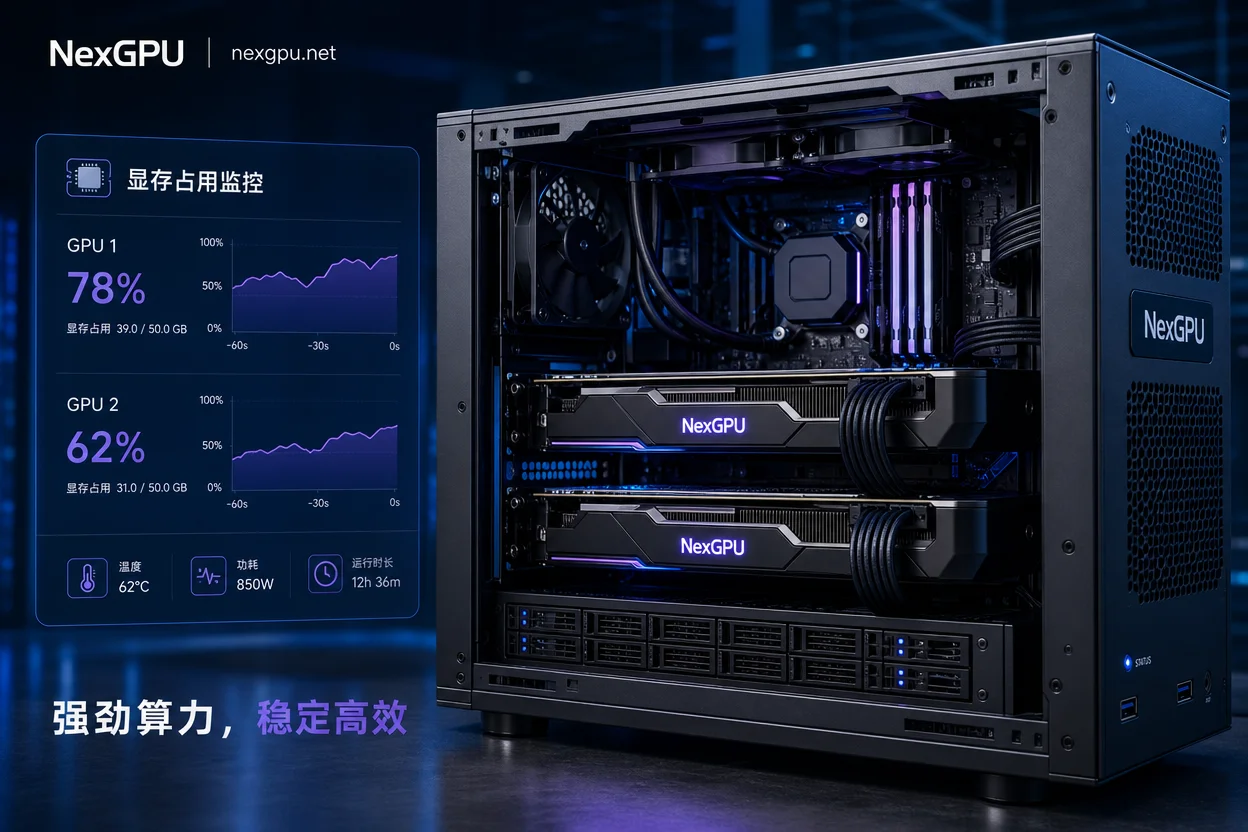
The true peak VRAM for quantization and TP combinations can only be confirmed by testing on specific GPUs. NexGPU offers various GPU server models, on-demand usage, and prebuilt model/application templates. Start with dual 24/32GB GPUs for the quantized version, verify feasibility and output quality, then decide whether to switch to 80GB for FP16.
Required metrics list:
| Metric | Description |
|---|---|
| Peak VRAM | Full load peak |
| Supported concurrency | Max concurrent requests |
| Max sequence length | Max context length |
| Comparison set pass rate | Business pass ratio |
| Unit token cost | Hourly rent ÷ throughput |
Deployment Checklist and Four Common Pitfalls
Go through this Qwen2.5-72B multi-GPU quantized deployment tutorial checklist before going live: identical GPUs, weight format matching, TP divisibility, leave 10% headroom. Quick solutions for four common pitfalls:
- Can dual 4090 run it? Yes, but must quantize and use TP=2; VRAM headroom is small, reduce concurrency first.
- AWQ or FP8? Choose FP8 for precision priority, AWQ-INT4 for VRAM priority.
- What TP size? Based on GPU count: single 80GB can use TP=1, dual must use TP=2.
- OOM at startup? Reduce concurrency and sequence length first.
More multi-GPU inference tips: 多卡推理优化.
FAQ
Can Qwen2.5-72B run on dual 4090?
Yes, but must quantize (AWQ-INT4 or FP8) and use TP=2. Dual 24GB totals 48GB; after quantization, weights plus runtime occupy about 40–48GB, leaving little headroom. Suggest limiting max sequence length to 8K and concurrency to around 4, with 10% VRAM reserved.
AWQ or FP8 for Qwen2.5-72B?
Depends on VRAM headroom and hardware support. AWQ-INT4 saves more VRAM, suitable for dual 24GB or higher concurrency; FP8 retains precision better, suitable for quality-sensitive tasks, but you must confirm via local engine help and minimal startup test. Try AWQ first, switch to FP8 if quality fails.
What tensor parallel size for Qwen2.5-72B?
Must equal the actual number of GPUs and divide attention heads evenly. Set TP=2 for dual GPUs, TP=1 for single 80GB. If VRAM is insufficient, prefer reducing concurrency or sequence length, not reducing TP.
How much VRAM does INT4 quantized 72B need?
About 40–48GB is a magnitude reference for weights plus runtime. Actual peak depends on context length, concurrency, and engine overhead; always test on target GPUs.
Does quantized Qwen2.5-72B reduce answer quality?
Quantization introduces some precision loss, extent depends on task type. You must build a 30–50 prompt comparison set, compare outputs and throughput before/after, and judge acceptability by pass rate.
vLLM startup with Qwen2.5-72B reports OOM, what to do?
Troubleshoot in order: reduce max concurrency and max sequence length first, then lower VRAM utilization cap, and finally consider switching to a more aggressive quantization (e.g., FP8 to AWQ-INT4) or adding GPUs.



Comments(0)