 NexGPU-算力租赁,GPU服务器,GPU云算力,AI服务器租用-新闻博客
By the end of 2026, Ollama is no longer just a "local toy" for developers to try out 7B small models on their laptops. With the proliferation of team-level code assistants (like OpenCode), internal RAG knowledge bases, and multi-step AI Agent workflows, more and more R&D teams are choosing to rent Ollama GPU servers in the cloud as a private, zero-token-cost backend inference base that supports OpenAI-compatible APIs.
However, after moving Ollama to GPU servers, many developers have encountered puzzling phenomena:
- They rented an RTX 4090 with 24GB VRAM or even an RTX 5090 with 32GB, running a 32B quantized model with weights of only a dozen GB, but the generation speed suddenly drops to two or three tokens per second;
- It's smooth when one person tests, but when two or three team members call the API simultaneously, the second person's request seems to "freeze" and takes a long time to output;
- Some even accidentally include the
:cloudtag when pulling models, causing requests to be queued and timeout on external cloud services, without ever using the server's local GPU.
If you are already familiar with basic GPU selection concepts (you can refer to our previous article 《Ollama Deployment VRAM Anxiety? How to Rent GPU Servers on Demand for Ultimate Cost-Effective Local Inference Experience》), this article will take you further, from the perspective of server-side low-level scheduling and environment variable tuning, to completely solve Ollama's "silent slowdown" and "concurrency blocking" problems on GPU servers.
1. Why Does Your GPU Server Suddenly Slow Down with Ollama? Uncover "Silent CPU Fallback"
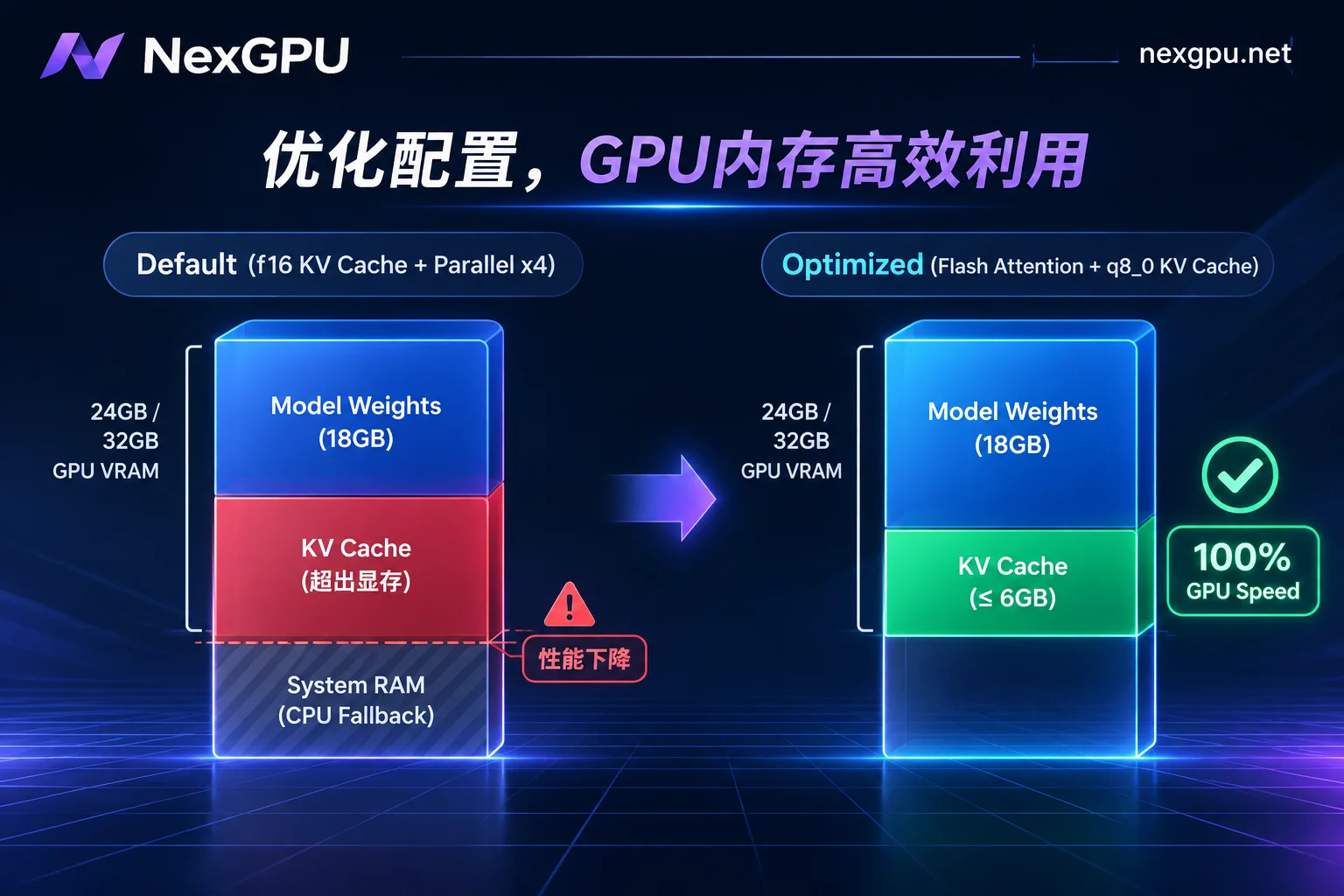
In PyTorch or vLLM, if the model weights plus context exceed physical VRAM, the program usually throws an CUDA out of memory error and exits. But Ollama's design philosophy is "keep-alive first"—when the total required VRAM exceeds available GPU space, Ollama does not error out; instead, it silently offloads some model layers that don't fit to system RAM, using CPU for computation.
Once this "CPU/GPU split" is triggered, data must be repeatedly transferred between VRAM and system memory over the PCIe bus, and inference throughput plummets by over 80%.
1. Verify with ollama ps
In the GPU server terminal, don't just look at nvidia-smi and assume everything is fine if there's VRAM usage. While the model is running, execute the following command:
ollama psPay attention to the PROCESSOR column in the output:
100% GPU: All model layers and KV cache run on the GPU, at full speed.75%/25% CPU/GPU: Silent fallback triggered! Your expensive GPU is now waiting for slow CPU computation.
2. The Real Culprit of VRAM Exhaustion: Overlooked KV Cache and Concurrency Multiplier
Why does a Qwen 32B (Q4_K_M) model with only 19GB of weights still trigger CPU offloading on a 24GB VRAM card?
The answer lies in the multiplier effect of KV Cache and Parallel Slots. In Ollama's current scheduling mechanism, once concurrency is enabled or context is increased, the VRAM usage formula is not simple linear addition but:
Actual VRAM usage ≈ Model weight size + (Single context KV Cache size × OLLAMA_NUM_PARALLEL) + CUDA runtime overheadTaking common 8B~32B models as an example, under the default f16 (half precision):
- When context (
num_ctx) is set to the default 2K~4K, KV Cache only takes a few hundred MB; - When you increase context to 32K or even 128K to fit entire documents or long codebases, the KV Cache per request expands to 4GB ~ 16GB;
- If you also set the maximum parallel requests
OLLAMA_NUM_PARALLELto 4, Ollama pre-allocates the total KV cache pool based on 4 times the context length! The originally ample 24GB VRAM is instantly overwhelmed, and some model layers are forced back to CPU.
2. Four Core Environment Variables to Squeeze Maximum Performance from Ollama GPU Servers
To keep the model firmly in 100% GPU and support multi-user concurrency without blindly upgrading to expensive GPUs, the key is to configure environment variables before starting the service. When creating an instance from the NexGPU image template, you can directly fill in the following parameters in the "Environment Variables" section of the configuration interface, or inject them into the systemd service configuration in the Linux terminal:
1. Enable Flash Attention and KV Cache Quantization (Save Half the Context VRAM)
This is the most cost-effective combination for running long contexts (like RAG and codebase analysis) on GPU servers in 2026:
OLLAMA_FLASH_ATTENTION=1
OLLAMA_KV_CACHE_TYPE=q8_0OLLAMA_FLASH_ATTENTION=1: Forces the fused attention kernel, which is almost a zero-cost win for both performance and VRAM on modern NVIDIA GPUs.OLLAMA_KV_CACHE_TYPE=q8_0: Quantizes the defaultf16(16-bit) KV cache to 8-bit integers. Tests show thatq8_0has negligible impact on model output quality but directly halves the KV Cache VRAM usage for long texts (e.g., from 8GB to 4GB). If VRAM is extremely tight, you can even tryq4_0(cuts about 75% of cache usage, but may affect complex logical reasoning accuracy).
2. Precisely Control Concurrency Slots and Queueing Strategy (Solve "Fake Freeze" in Multi-User Calls)
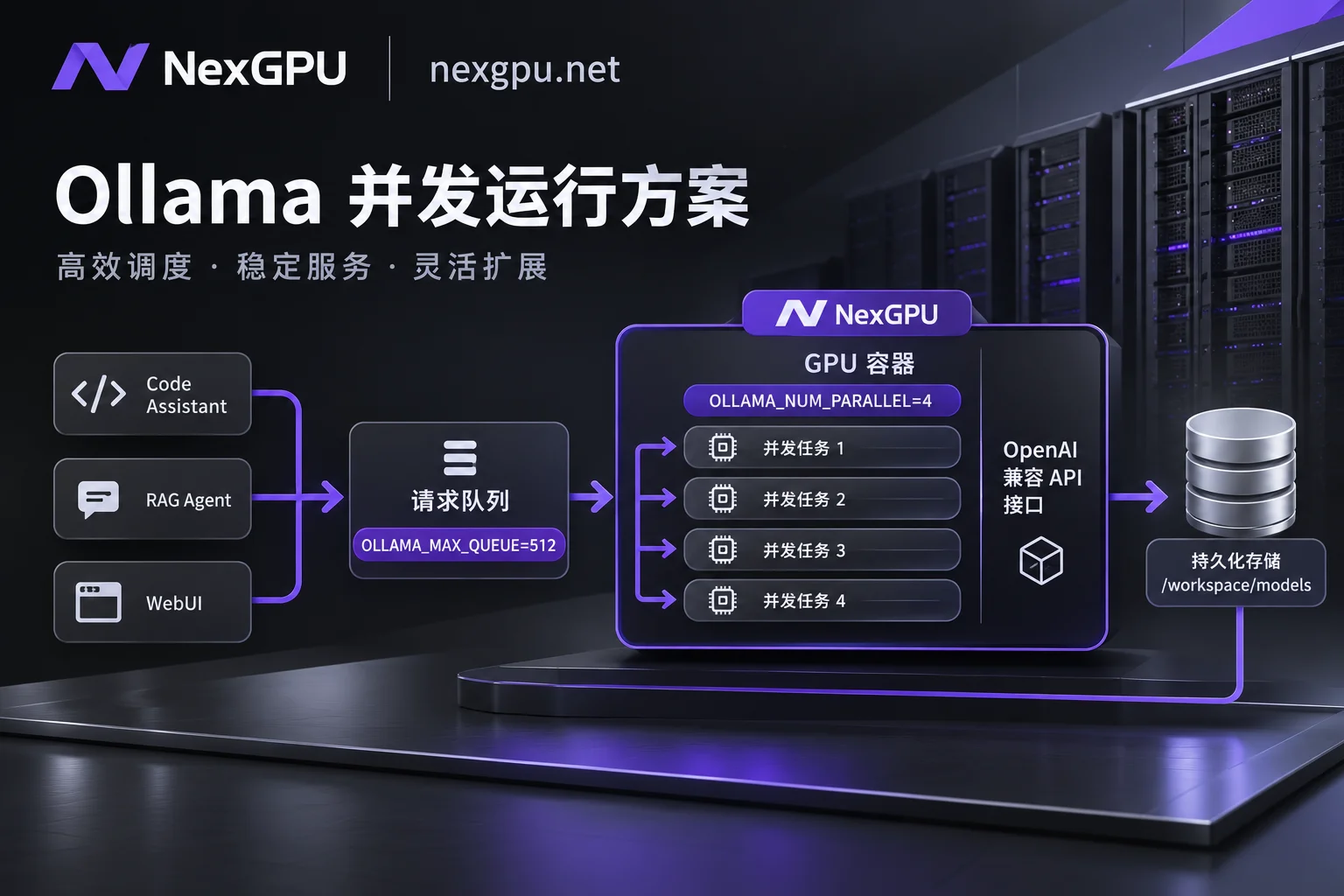
By default, Ollama's OLLAMA_NUM_PARALLEL often runs conservatively in single-concurrency mode. When the first person's request is generating tokens, the second person's request does not error but enters a queue until the first person finishes—this looks like the server is "frozen" from the frontend.
OLLAMA_NUM_PARALLEL=4
OLLAMA_MAX_QUEUE=512OLLAMA_NUM_PARALLEL: Controls the number of parallel requests a single loaded model can handle simultaneously. For 24GB VRAM running 8B/14B models, set to4; for 32B models (withq8_0KV cache), set to2. If team concurrency reaches dozens of users, it's recommended to switch to the vLLM template as described in our 《vLLM Deployment Practical Guide: Migrating from Ollama to High-Concurrency Production Environment》.OLLAMA_MAX_QUEUE: The maximum number of requests allowed to queue when concurrency slots are full (default 512). Beyond this, HTTP 503 is returned to protect the server from being overwhelmed by traffic spikes.
3. Multi-Model Switching and Resident Memory Management (Adapt to AI Agent Workflows)
Today's AI Agents often don't use a single model: they might first use a small embedding model for vector retrieval, then an 8B model for intent routing, and finally a 32B model for code generation. If each switch requires reloading tens of GB of weights from disk to VRAM, the latency is unacceptable.
OLLAMA_MAX_LOADED_MODELS=2
OLLAMA_KEEP_ALIVE=1hOLLAMA_MAX_LOADED_MODELS: The number of models that can reside simultaneously on one or multiple GPUs. If VRAM is insufficient to hold two models at once, set to1to force automatic unloading of old models, preventing both models from competing for VRAM and falling back to CPU.OLLAMA_KEEP_ALIVE: How long a model stays in VRAM after being idle (default is only5m). During hourly-billed development sessions, set to1hor-1(permanent) to completely eliminate cold-start loading waits.
4. Model Storage Path and Multi-GPU Load Balancing
OLLAMA_MODELS=/root/workspace/models
OLLAMA_SCHED_SPREAD=trueOLLAMA_MODELS: Customize the disk path for model weights, facilitating centralized management of large GGUF files.OLLAMA_SCHED_SPREAD: When renting dual or quad-GPU servers for 70B+ large models, enabling this allows Ollama to distribute model layers more evenly across all available GPUs.
3. GPU Server Selection Table for Mainstream Open-Source Models on Ollama in 2026
After understanding the VRAM calculation logic, we can choose GPU servers that "make the most of each card without waste." In the NexGPU Model Selection Guide, we have already marked the VRAM thresholds after quantization for various mainstream open-source models. Here, combined with the typical production/development scenario of enabling OLLAMA_KV_CACHE_TYPE=q8_0 + 16K context + 2~4 concurrent requests, we summarize the most reliable hardware configurations:
| Target Model Scale and Examples | Recommended Quantization | Estimated Weights + 16K Concurrent Cache | Recommended GPU Model (NexGPU Market) | Suitable Teams and Business Scenarios |
|---|---|---|---|---|
| 7B ~ 14B Lightweight Mainstream (e.g., Qwen3-8B/14B, Llama 3.1 8B) | Q4_K_M / Q8_0 | About 8GB ~ 14GB | 1× RTX 3090 (24GB) or 1× RTX 4090 (24GB) | Personal remote development, high-response daily code completion, lightweight RAG Q&A (can also host embedding model) |
| 27B ~ 32B Golden Sweet Spot (e.g., Qwen 32B, DeepSeek-R1-32B, Gemma 4 31B) | Q4_K_M | About 21GB ~ 26GB | 1× RTX 4090 (24GB) (need to control concurrency) or 1× RTX 5090 (32GB) | The 32GB VRAM RTX 5090 is an excellent match for 32B models, leaving ample KV Cache headroom and completely avoiding CPU fallback |
| 70B ~ 100B+ Medium-Large Models (e.g., Llama 3.3 70B, Qwen large parameter series) | Q4_K_M | About 46GB ~ 58GB | 2× RTX 4090 (48GB) or 1× A100 / H100 (80GB) | Department-level shared inference backend, complex multi-step Agent planning, private data processing with high requirements for long-text adherence |
GPU Selection Tips: When choosing machines on the NexGPU Compute Market, each row is a real rentable physical node, with compute and disk prices listed separately. If you first select a preset environment and then filter machines, the system will automatically mark machines with insufficient VRAM and indicate the reason, avoiding the embarrassment of "renting the wrong card that can't fit the model" from the start.
4. Deploy in 3 Minutes: Launch a Production-Grade Ollama Service on NexGPU
Instead of struggling with drivers and CUDA version conflicts locally, it's better to use cloud preset environments and rent GPUs on demand. Here is the standard workflow for deploying and managing an Ollama GPU server on NexGPU:
Step 1: Register Without Authentication and Select Ollama Preset Template
- Register with just an email (no cumbersome real-name verification or quota application; after registration, you can view real-time transparent prices and recharge via Alipay or USDT; see the Quick Start Guide for details).
- Go to the Image Template Library, and under the Large Model Inference category, directly select the Ollama preset image (with matching NVIDIA drivers, CUDA, and runtime pre-installed, and OpenAI-compatible API included upon launch).
- In the custom environment variable section, fill in the previously mentioned
OLLAMA_FLASH_ATTENTION=1,OLLAMA_KV_CACHE_TYPE=q8_0, andOLLAMA_HOST=0.0.0.0:11434, which will take effect automatically on boot.
Step 2: Connect to Instance and Pull Local Weights
Once the instance is running, you can log in to the server via the browser's built-in web terminal (root privileges) or SSH direct connection (each instance has a dedicated public IP and port mapping, no jump host needed; see the Connect to Instance Guide for details):
# 拉取本地量化权重(注意:切勿使用带有 :cloud 后缀的标签,确保 100% 跑在本地 GPU 上)
ollama pull qwen2.5-coder:32b

# 预热模型并验证是否 100% 命中 GPU
ollama run qwen2.5-coder:32b ""
ollama ps
Step 3: Expose to Open WebUI or Agent Applications via Alternate Ports
In addition to the default mapping, NexGPU reserves a set of alternate ports for each instance to expose custom services. After Ollama starts, external applications (such as Cursor, Dify, n8n, or custom backends) can directly access its OpenAI-compatible API (/v1/chat/completions) via the public IP plus mapped port.
If you need to deploy an additional visual chat interface (like Open WebUI) for the team or manage documents and scheduled tasks on the server, you can also install the aaPanel visual management panel with one click on the instance details page, making it easy to manage files, processes, and reverse proxies in the browser.
5. Calculate Costs: How to Save Over 60% on Compute Fees with "Stop and Keep Disk"?
When deploying Ollama GPU servers internally, many R&D teams' biggest cost waste is "idle compute"—the team only writes code and tunes Agents during weekday daytime, but the monthly-rented GPU server is still billed in full at night and on weekends; if the machine is destroyed after each use, the next startup requires another half hour to pull tens of GB of model weights.
For this tidal pattern of development and inference needs, NexGPU's itemized transparent billing and instance lifecycle management provide an excellent solution (see the Billing Documentation for details):
- Decoupled Billing of Compute and Storage: Bills are strictly divided into compute, storage, and traffic, with no activation fees, port fees, or minimum consumption. Compute fees are metered per second and billed hourly, and the unit price at the time of order is locked until the instance is destroyed.
"Stop and Keep Disk" After Work, Instant Resume at Work:
- When the team leaves work or debugging is done, click Stop in the Instance Management Backend.
- Compute fees stop immediately after stopping; the system only charges a very low disk storage fee per GB/month, and your downloaded hundreds of GB of model weights, environment variable configurations, and business data are preserved intact.
- The next day, click start, no need to re-
ollama pull, and within seconds the full-speed GPU inference service is restored.
- Security Against Accidental Deletion and Balance Protection: Instances are exclusive containers; the platform does not read or back up disk contents. Only when you actively enter the instance ID to confirm destruction will the disk be immediately released and all billing stopped. Meanwhile, the prepaid mechanism sends warning emails when the balance is low, automatically stops the instance to protect the scene when exhausted, and seamlessly resumes after recharge.
Conclusion
Building a high-performance Ollama GPU server in 2026 is not about blindly stacking hardware, but about understanding the VRAM accounting of KV Cache and concurrency slots, using the right quantization environment variables, and matching an elastic compute billing model.
Whether you need an RTX 4090/5090 to build a personal 32B code assistant or multi-GPU A100/H100 nodes to support enterprise-level private AI scenarios (contact sales for customized enterprise dedicated clusters and corporate invoicing), you can now go to the NexGPU Compute Market to choose your preferred GPU and combine it with the Large Model Private Deployment Solution to start a worry-free cloud GPU inference experience in three minutes!