 NexGPU-算力租赁,GPU服务器,GPU云算力,AI服务器租用-新闻博客
Why FLUX.1 Easily Runs Out of VRAM in ComfyUI
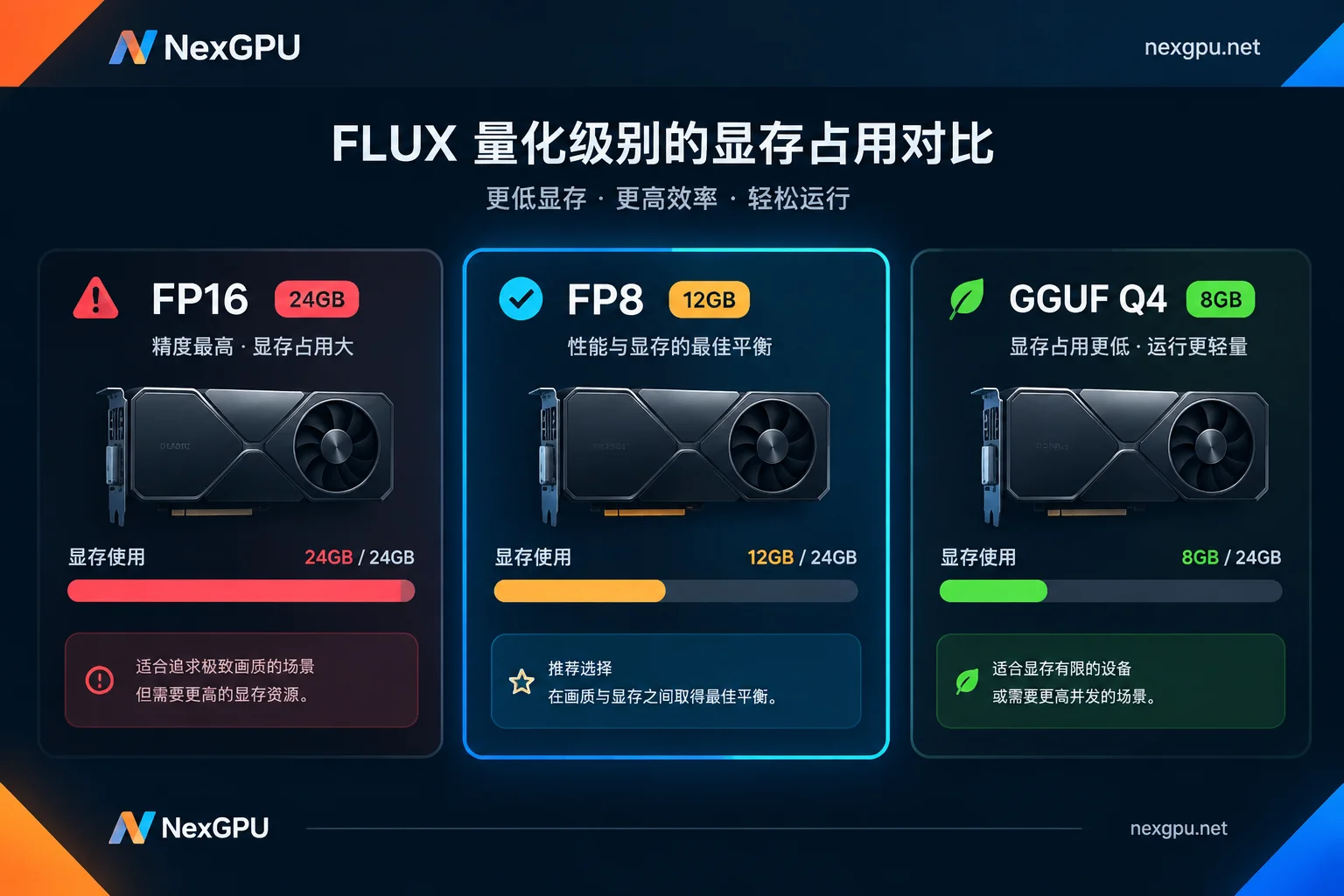
FLUX.1 (dev or schnell) uses a Diffusion Transformer architecture with about 12 billion parameters. The full-precision (FP16/BF16) weight file alone requires roughly 24GB of VRAM. Once loaded, it also runs a T5-XXL text encoder that is nearly 10GB in size, and invokes the VAE during high-resolution decoding. Peak VRAM demand easily exceeds the ceiling of 16GB consumer-grade GPUs.
When ComfyUI reports CUDA Out of Memory or RuntimeError: OutOfMemoryError, it usually happens in three stages: weights don't fit during model loading, the text encoder fills up VRAM during conditioning, or the VAE Decode overflows right after sampling finishes.
Software Optimization: Bring Peak VRAM Down to 8–12GB
Use Official FP8 Quantized Weights
The most direct way to reduce VRAM is to switch to an FP8 checkpoint. For users with limited VRAM, FLUX officially recommends downloading the FP8 single-file weights, or setting weight_dtype to fp8_e4m3fn in ComfyUI's "Load Diffusion Model" node. This cuts weight usage from 24GB to about 11–12GB with minimal quality loss, imperceptible in most cases.
Replace with a Lightweight T5 Encoder
The default t5xxl_fp16 text encoder file is nearly 10GB and becomes a bottleneck when VRAM or system memory is below 32GB. ComfyUI officially suggests switching to t5xxl_fp8_e4m3fn or the scaled version, significantly reducing VRAM pressure during conditioning. These two files are usually placed in the ComfyUI/models/clip/ directory and specified in the DualCLIPLoader node.
6–8GB GPUs: GGUF or NF4 Extreme Quantization
If your GPU only has 6GB to 12GB (e.g., GTX 1660, RTX 3060), you can install the ComfyUI-GGUF plugin and load FLUX GGUF models (such as Q4_K_S, Q5_K_M) with a matching GGUF version of the T5 encoder; or directly use the flux1-dev-bnb-nf4 version. These quantization schemes can bring peak VRAM down to 6–8GB, but only if your host has at least 32GB of physical RAM for layer offloading and caching. Speed will be noticeably slower than full precision or FP8—a single image might go from a few seconds to several minutes.
Launch Parameters: --lowvram and Memory Scheduling
Add the --lowvram parameter to your ComfyUI launch script (e.g., run_nvidia_gpu.bat or python main.py) to force offloading the text encoder or VAE to system memory when not in use, reducing the resident GPU VRAM peak. Combined with --reserve-vram 0.5 (reserve 0.5GB margin) or --disable-smart-memory (disable aggressive caching), you can further prevent sudden OOM.
Example:
python main.py --lowvram --reserve-vram 0.5Tiled VAE to Avoid Decoding Crashes
When FLUX generates images at 1024×1024 or higher, VRAM often spikes right after sampling during VAE Decode. Replace the standard "VAE Decode" node with "VAE Decode (Tiled)" in your workflow to significantly smooth peaks by decoding in tiles. Start with tile_size 512 and decrease it as VRAM gets tighter.
Control Generation Parameters and Clear Cache
- Set Batch Size to 1: Avoid stacking multiple images in VRAM per execution; use the queue instead.
- Manually clear cache: Before switching models or tweaking prompts, right-click in ComfyUI and select "Clean GPU Memory" or unload residual models.
When to Rent Cloud GPUs with 24GB+ VRAM
Running a highly quantized FLUX on an 8GB–12GB GPU, or relying heavily on --lowvram for frequent memory paging, can stretch per-image time from seconds to minutes. If you need to:
- Generate at original precision: FP16/BF16 weights + full T5 encoder, with zero quality loss;
- Get second-level response: Batch generation or real-time prompt tuning without waiting for memory paging;
- Run complex workflows: Stacking ControlNet, multiple LoRAs, or higher resolutions (e.g., 2048×2048) further increases VRAM demand;
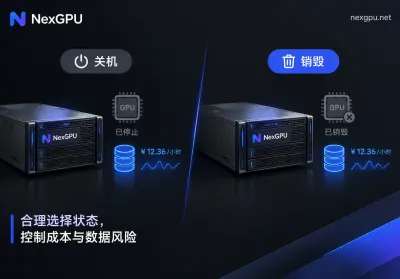
Then a more efficient solution is to rent a GPU with 24GB+ VRAM (such as RTX 4090 or data-center-grade compute), billed by the hour and powered on/off on demand. NexGPU offers GPUs from consumer to data-center grade, with one-click ComfyUI deployment via image templates. You only pay for storage when stopped, and billing stops completely when destroyed. For specific rentable nodes and unit prices, see the pricing page. Once you choose a configuration, the unit price is locked until destruction.
Summary of Troubleshooting Order
- First switch to FP8 weights + FP8 T5: Most 12GB–16GB GPUs can run after this step;
- Add Tiled VAE: Solves high-resolution decoding crashes;
- Add --lowvram: Further reduces resident peak;
- Extreme quantization (GGUF/NF4): The last resort for 6–8GB GPUs, requiring 32GB+ RAM;
- Weigh speed vs. cost: If local extreme optimization is still unacceptably slow, or you need original precision and complex workflows, consider renting 24GB+ cloud compute on demand.
The limit of VRAM optimization is the hardware's physical ceiling. Software can only trade off between quality, speed, and VRAM. Finding a balance you can accept is the most practical solution.



Comments(0)