 NexGPU-算力租赁,GPU服务器,GPU云算力,AI服务器租用-新闻博客
According to the official Ollama GitHub Release Notes (v0.32.6, 2026-08-05), Ollama released v0.32.6 on August 5, 2026, introducing MTP Head-based automatic speculative decoding and improved OpenAI protocol compatibility for /v1/chat/completions. For teams looking to quickly set up an internal LLM API on cloud GPU servers, this update means: without changing code, generation speed may improve (official figures not disclosed), while the matured OpenAI-compatible interface makes integration with existing applications smoother. However, to make an Ollama GPU server truly run stably and cost-effectively, the key still lies in VRAM selection, parameter tuning, and deployment approach.
1. What's New in Ollama v0.32.6: Practical Implications of MTP Automatic Speculative Decoding and OpenAI Protocol Compatibility
This update has three noteworthy points:
- MTP Head-based automatic speculative decoding: This is an implementation of speculative decoding that uses the model's built-in MTP Head for draft prediction, which is then verified by the main model to accelerate generation. Unlike approaches requiring an additional draft model, this is provided by the model itself, making it "automatic"—you don't need to configure a draft model for each model.
- OpenAI protocol compatibility improvements: Enhanced compatibility for /v1/chat/completions means applications using the OpenAI SDK or developed based on the OpenAI protocol can switch to Ollama as a backend more smoothly.
- Cloud model scheduling optimization: Scheduling optimizations for cloud deployment scenarios facilitate model loading and unloading in multi-instance environments.
For small teams wanting to use Ollama as a server, the core benefits are twofold: potential generation acceleration (but no official multipliers; you'll need to test yourself) and reduced migration costs—existing applications may only need to change the base_url to connect.
2. Why Automatic Speculative Decoding Is Especially Friendly for Small Teams: Benefits Without Changing Inference Code
The idea of speculative decoding is to use a lightweight draft model to quickly predict multiple tokens, then have the main model verify them at once. If predictions are correct, multiple tokens can be generated at once, speeding up generation. However, traditional approaches require maintaining an additional draft model, and the match between draft and main models directly impacts acceleration, raising the bar for deployers.
MTP speculative decoding builds the draft capability into the model (via MTP Head), making it transparent to users—the MTP Head is included with the model, and in v0.32.6 this capability activates automatically without requiring changes to inference code or loading an extra draft model. For whether it is active and how to enable it specifically, refer to the official v0.32.6 Release Notes and actual runtime logs.
However, it's important to note that the official announcement did not provide token/s improvements on specific GPUs, so you'll need to measure acceleration on your own Ollama GPU server, especially when using 32B or larger parameter models.
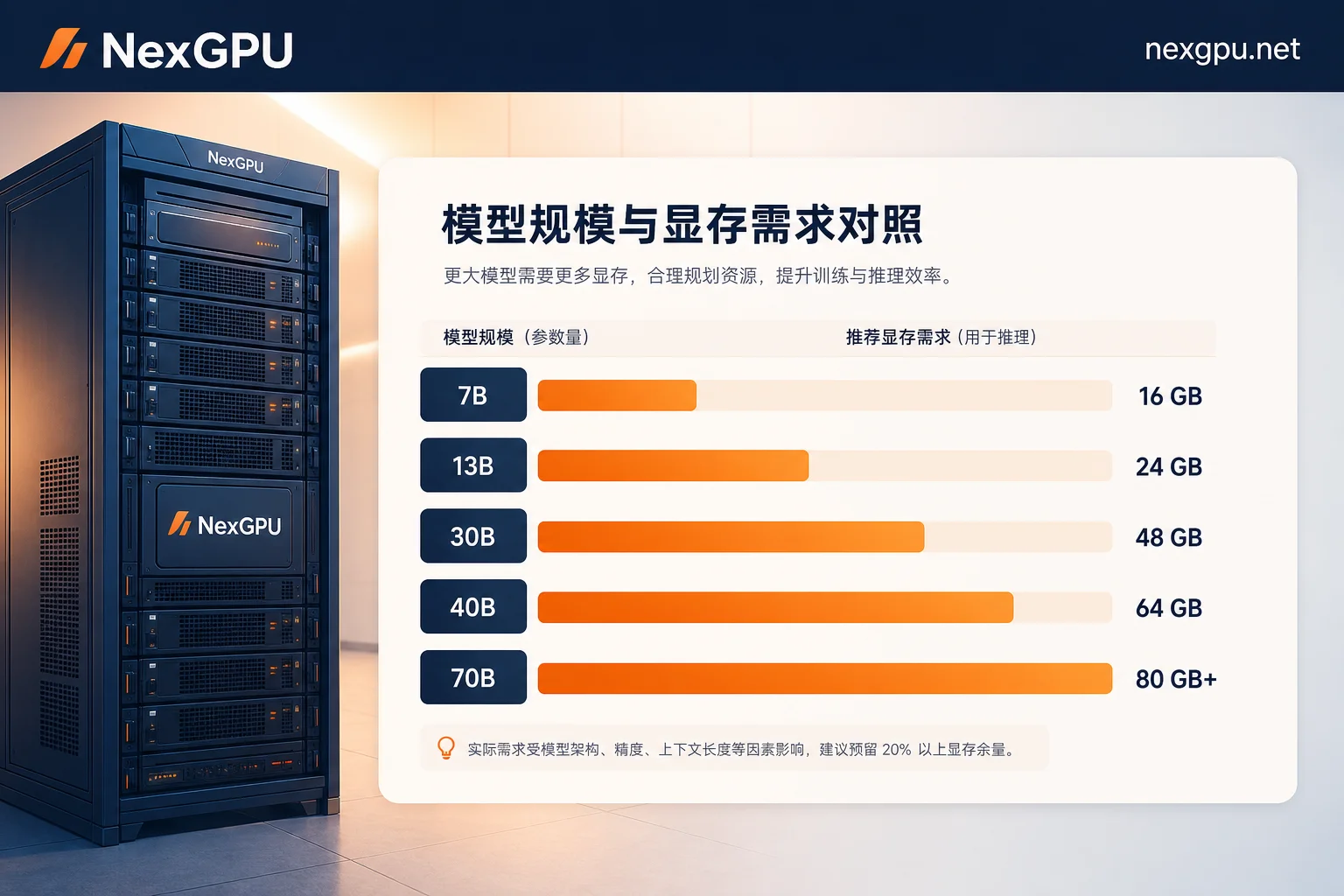
3. Converting Model Size to VRAM: Which GPU Tier Do 7B/14B/32B/70B Fall Into
According to the LLM VRAM Requirements 2026 hardware research report released at the end of July 2026, the latest VRAM measurements in the second half of 2026 show that 32B-class models (such as Qwen3 32B, DeepSeek-R1-Distill-32B) require approximately 20GB VRAM under 4-bit quantization, and a single 32GB GPU can run them smoothly. This tier offers the best price-performance ratio and is a top choice for many small teams.
VRAM requirements for 7B and 14B can be estimated based on this data and quantization formula: under 4-bit quantization, model weights are approximately equal to the number of parameters times 0.5 (i.e., about 0.5GB per billion parameters), plus KV cache and slight overhead. Estimates are as follows (for reference only; actual figures from nvidia-smi at runtime should be used):
- 7B model: 4-bit quantization requires approximately 4-6GB VRAM (weights ~3.5GB plus KV cache), so a 12GB single card is sufficient; even 8GB can run with small context. These are estimates based on the 4-bit weight formula, not including KV cache increments for long context and concurrency; actual figures should be based on
nvidia-smiobservations. - 14B model: 4-bit quantization requires approximately 8-12GB, with 16GB single card being stable; 12GB can run but with attention to context length. These are estimates based on the 4-bit weight formula, not including KV cache increments for long context and concurrency; actual figures should be based on
nvidia-smiobservations. - 32B model: ~20GB under 4-bit quantization; 32GB single card is the minimum for smooth operation (with headroom).
- 70B and MoE models: Require 48GB-96GB VRAM, typically needing multi-GPU or high-VRAM single cards (e.g., 80GB or 96GB).
Table: Model Size and VRAM Tier (Estimates)
| Model Size | VRAM for 4-bit Quantization (Estimated) | Recommended GPU (with ~20% headroom) |
|---|---|---|
| 7B | 4-6 GB (est.) | 12GB single card |
| 14B | 8-12 GB (est.) | 16GB single card |
| 32B | ~20 GB (measured) | 32GB single card |
| 70B+ | 48-96 GB (measured) | Multi-GPU or high-VRAM cluster |
The "Recommended GPU" in the table assumes about 20% VRAM headroom; for long context and multi-concurrency scenarios, scale up one tier. 7B/14B are estimates; 32B and above are measured data from the second half of 2026. Ollama GPU server VRAM requirements are not just weights, but also KV cache and inference overhead, so leaving at least 20% headroom is safer.
4. Three Dividing Lines for Ollama GPU Server Selection: Single Card Enough, Need More VRAM, Switch to Professional Inference Framework
Based on the VRAM data above, you can draw three dividing lines to quickly position which GPU tier to choose:
- Single 32GB card sufficient: If your target is 32B and below models with low concurrency (e.g., 10-20 internal users), a single 32GB card is enough. This is the most economical choice, suitable for most internal API scenarios.
- Need 48GB-96GB or multi-GPU: When you need to run 70B-class, MoE models, or require long context and high concurrency, a single 32GB card will be insufficient. In this case, choose higher-VRAM models like A100/H100 80GB, or RTX Pro 96GB, or set up a multi-GPU cluster.
- Should switch to professional inference framework: If concurrency is very high (e.g., production-grade external API), Ollama may not be the best choice; professional frameworks like vLLM and SGLang have advantages in throughput and VRAM management. But if you prioritize quick deployment and low-cost validation, Ollama is still the first stop.
Market compute provider blogs often compare only unit prices, ignoring VRAM tiers—the same 32B model on a 24GB card may frequently swap in and out due to insufficient VRAM, raising actual costs. Therefore, when selecting, always consider model VRAM requirements, not just card unit price. For internal API services with fluctuating concurrency like Ollama, on-demand billing, instant startup, and GPU cloud platforms with pre-built models and application templates (like NexGPU) are more suitable for trial runs to determine the VRAM tier before solidifying configuration.
5. Setting Concurrency and Context Parameters: Key Environment Variables and Debugging Order for Ollama Server
This chapter provides general engineering experience; specific values should be based on actual VRAM usage (nvidia-smi). On an Ollama GPU server, several environment variables directly affect concurrency and VRAM usage:
- OLLAMA_HOST: Sets the listen address; the default is often 127.0.0.1; for external service, change to 0.0.0.0. Different versions may vary; refer to
ollama servestartup logs or official documentation. - OLLAMA_NUM_PARALLEL: Number of parallel requests; default often 1. Increasing concurrency raises VRAM usage (since multiple KV caches are retained), so increase gradually based on VRAM headroom. Default may vary by version.
- OLLAMA_MAX_LOADED_MODELS: Maximum number of models loaded simultaneously; default often 3. If using one model, set to 1 to save VRAM. Default may vary by version.
- OLLAMA_KEEP_ALIVE: Time models stay in memory; default often 5 minutes. Set to -1 to keep models resident, reducing cold starts but increasing VRAM usage. Default may vary by version.
- Context length (num_ctx): Default often 2048; increasing context significantly increases KV cache VRAM. Default may vary by version.
Suggested tuning order: first determine model and quantization (4-bit vs 8-bit), then set context length based on VRAM headroom, and finally increase concurrency gradually, monitoring VRAM usage (nvidia-smi) at each step. Avoid maxing out concurrency and context at once to prevent OOM.
6. Integrating Ollama with Existing Applications Using OpenAI-Compatible API: Key Migration Points
v0.32.6 improved compatibility for /v1/chat/completions. Note the following when migrating:
- base_url replacement: Change the OpenAI SDK's base_url to your Ollama server address, e.g.,
http://your-server:11434/v1. - Model name mapping: The
modelparameter in OpenAI requests must be filled with the model name pulled in Ollama (e.g.,qwen3:32b); you cannot directly use OpenAI model names. - Streaming responses: Ollama supports streaming output, but format may differ slightly from OpenAI; test your parsing logic.
- Timeouts and retries: First token latency is heavily influenced by model size and concurrency; client SDK default timeouts (not Ollama server) often become the bottleneck. Set timeouts based on P99 first token latency from load testing and configure retries.
- Compatibility is not full equivalence: The compatibility layer doesn't guarantee all features (e.g., function calling, tool calls) are identical; regression test before going live.
7. Completing One Deployment and Load Test on On-Demand GPU Resources: Steps and Cost Estimation Methods
On-demand billing GPU servers are suitable for Ollama's pattern of starting and stopping with fluctuating concurrency. Here's an actionable deployment procedure:
- Select GPU: Based on target model VRAM estimates, choose the corresponding GPU tier. On GPU cloud platforms like NexGPU that offer on-demand usage, instant startup, and pre-built model/application templates, test with your own model to measure throughput and VRAM usage, then solidify the card type and parameters.
- Launch instance: Create a GPU instance on the cloud platform, selecting an image with Ollama or Docker pre-installed (if available).
- Pull model: Execute
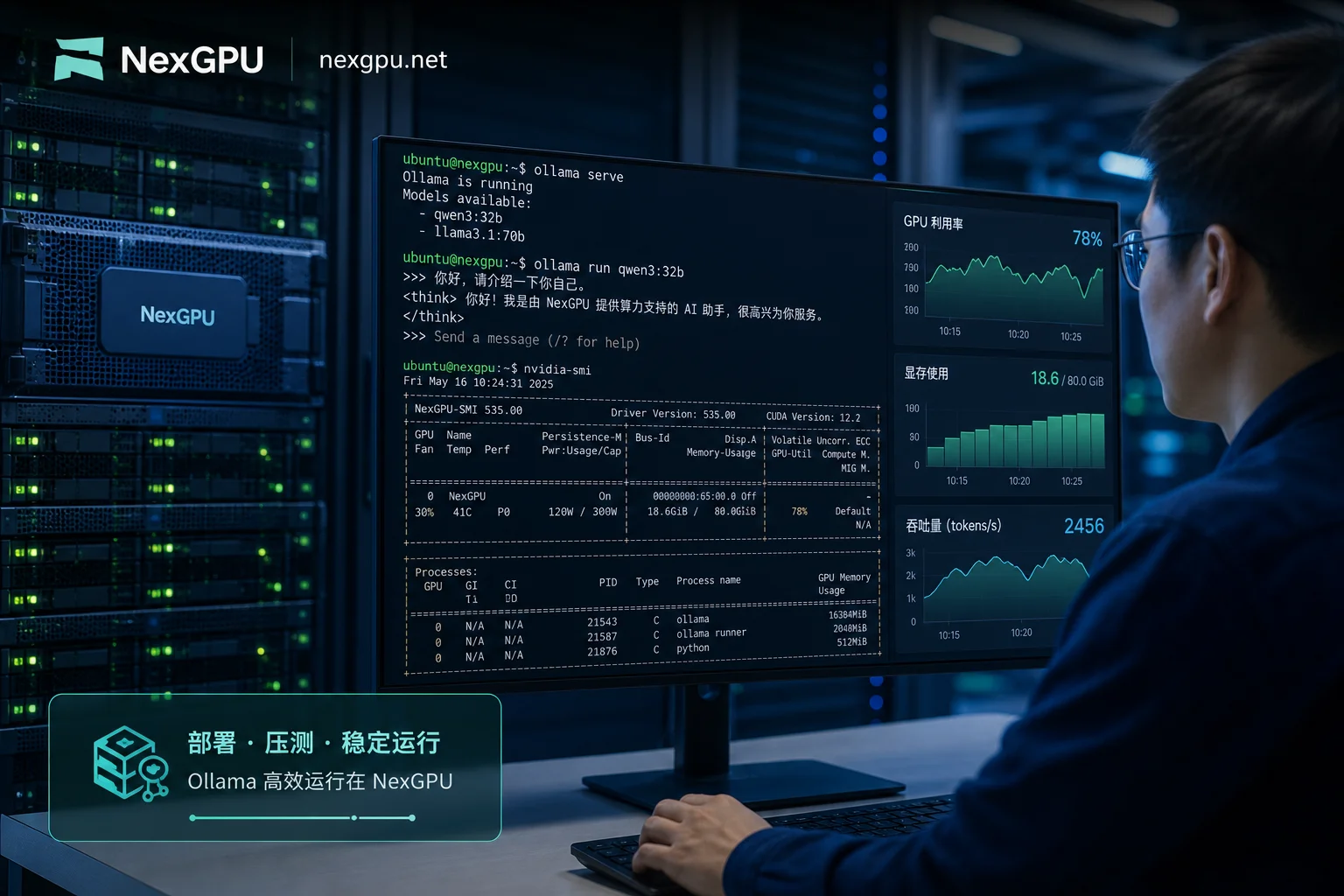
ollama pull qwen3:32b(example). - Verify VRAM usage: After starting the service, use
nvidia-smito check actual VRAM and confirm it's within budget. - Set concurrency and context: Adjust environment variables based on VRAM headroom, increasing concurrency gradually.
- Load test: Use tools like wrk or locust to simulate requests and measure QPS and first token latency.
- Solidify configuration: Write final environment variables and startup commands into a Dockerfile or systemd service for easy restart.
Cost estimation is simple: 单位时间价格 × 实际运行时长. With on-demand billing, you can first start a high-spec instance for a few hours of load testing, record average throughput, and then extrapolate long-term costs. Don't just look at hourly price; calculate based on "cost per million tokens" or "cost per QPS".
8. Ollama GPU Server Deployment Checklist and Common Pitfalls
Finally, here's a checklist you can follow directly:
- [ ] Reserve VRAM headroom: Keep actual usage below 80% of total VRAM.
- [ ] Trade-off between quantization and quality: 4-bit saves VRAM, but for quality-sensitive scenarios use 8-bit.
- [ ] Concurrency and context compete: Both increase VRAM usage; balance when tuning concurrency.
- [ ] Model residency and cold starts: Use
OLLAMA_KEEP_ALIVE=-1to keep models resident, but watch VRAM usage. - [ ] API authentication and port exposure: Do not expose port 11434 directly to the public; add API keys or reverse proxy.
- [ ] Version upgrade regression: After upgrading Ollama, retest compatibility and performance.
Common pitfalls include: blindly increasing concurrency leading to OOM, forgetting to set OLLAMA_HOST causing external access failure, and model name typos causing 404 errors. Following the checklist item by item will help avoid most issues.
Selecting and deploying an Ollama GPU server isn't complex; the core is matching VRAM budget with deployment approach. We recommend spending a week running a small-scale validation on pay-as-you-go GPU resources, recording peak VRAM, first token latency, and QPS under concurrency during the validation period, and then deciding on long-term card type and parameter configuration based on your own models and concurrency. After all, only measured data is the most reliable basis for selection.




Comments(0)