 NexGPU-算力租赁,GPU服务器,GPU云算力,AI服务器租用-新闻博客
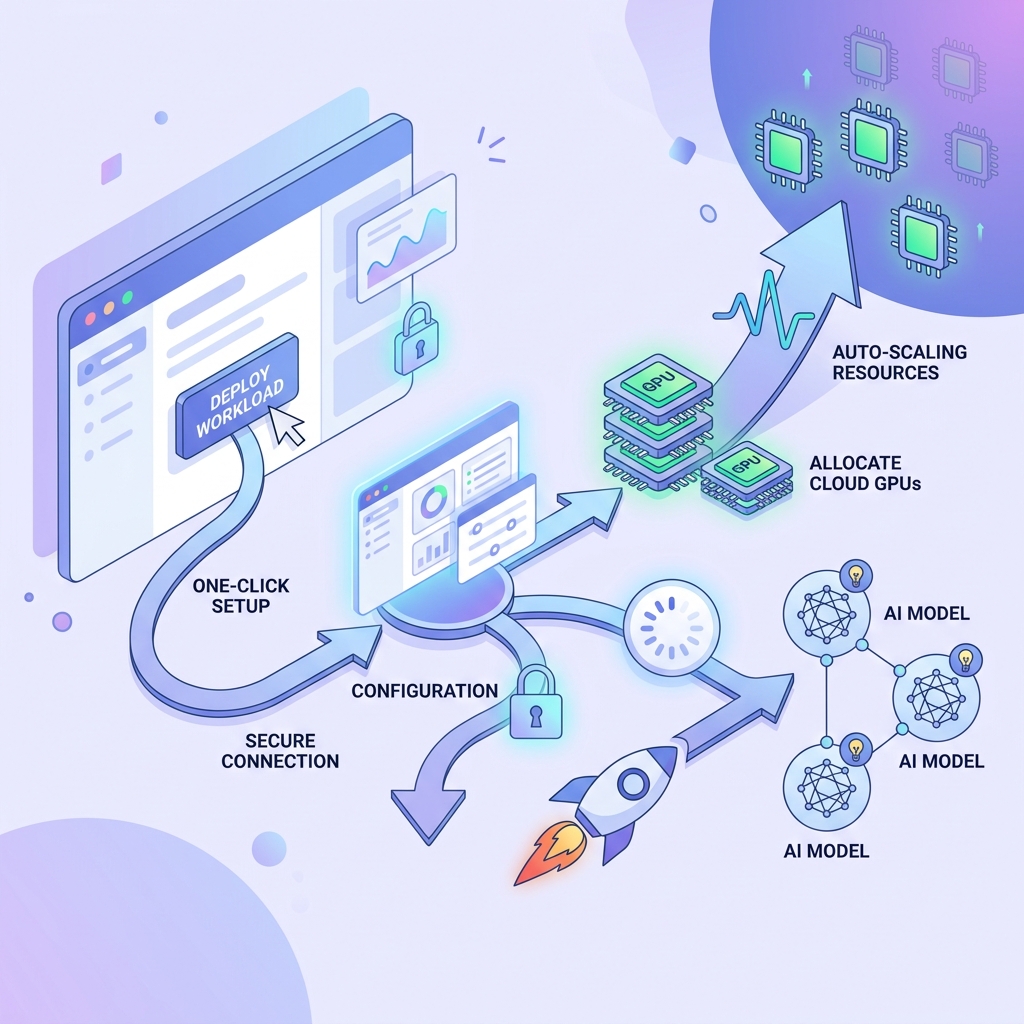
TL;DR: With the NexGPU platform, you can deploy the Qwen3.5 Aggressive uncensored version in about 10 minutes using a preset template, without manually setting up the environment.
Continuing with the L station internal beta, fellow members can register through our link.
Introduction
Recently, while browsing forums, I saw some members sharing deployment methods for Qwen3.5. However, for many beginners, the actual operation is still not user-friendly, or they are limited by local device performance and cannot experience it firsthand. Coincidentally, our company launched a GPU computing power server rental service this period, so I asked my colleagues to prepare a one-click deployment template for Qwen3.5 Aggressive uncensored version in advance. Here I’ve compiled a brief deployment process for you.
Deployment Steps
Step 1: Visit the NexGPU Official Website
Access https://nexgpu.net/zh/register/?ref=D03EE912,进入「创建实例」页面。
Create instance entry
Step 2: Choose a Deployment Template
Select the “QWEN3.5-35B Uncensored Adaptive” template.
This template will automatically match the corresponding model version based on the GPU memory of the instance you select later, and decide whether to enable vision capabilities. The adaptation rules are as follows:
| Hardware Condition | Quantization Precision | Context Length | Concurrency | NGL | Vision |
|---|---|---|---|---|---|
| Single GPU ≥ 120 GB | Q8_0 | 131072 | 2 | 99 | ✅ Enabled |
| Single GPU ≥ 70 GB | Q6_K | 131072 | 2 | 99 | ✅ Enabled |
| 4+ GPUs, each ≥ 30 GB | Q8_0 | 131072 | 2 | 99 | ✅ Enabled |
| 2+ GPUs, each ≥ 24 GB | Q6_K | 65536 | 2 | 99 | ✅ Enabled |
| Single GPU ≥ 24 GB | Q5_K_M | 65536 | 1 | 99 | ✅ Enabled |
| Single GPU ≥ 19 GB | Q4_K_M | 32768 | 1 | 99 | ❌ Disabled |
| Single GPU ≥ 17 GB | IQ4_XS | 24576 | 1 | 99 | ❌ Disabled |
| Single GPU ≥ 15 GB | Q3_K_M | 16384 | 1 | 60 | ❌ Disabled |
| Others (< 15 GB) | IQ2_M | 8192 | 1 | 40 | ❌ Disabled |
Step 3: Select an Instance and Create It
After choosing the template, pick an instance that meets the requirements. For a smoother demonstration, I directly used an H200 with 7000Mbps bandwidth instance.
About NexGPU
We collaborate with multiple GPU computing power service providers worldwide, integrating resources to offer users pre-installed, easy-to-use templates for cost-effective GPU rental services. From GTX 1060 to high-end GPUs like H200, the platform covers various instances, and supports billing by the hour (discounts for bulk or monthly rentals).
2|690x343
After selecting the instance, click “Next” to confirm the configuration.
Confirm configuration
Step 4: Wait for the Instance to Be Ready
Then wait about 10 minutes for the instance to be created.
If the chosen instance has lower bandwidth or weaker configuration, this process may take up to 20 minutes.
Creating instance
Step 5: Connect to the Instance via SSH
After the instance is created, first create an SSH Key, then connect to the instance using that Key.
Create SSH Key
Once SSH connection is successful, you can see the LLaMA API address and the UI page.
Connection successful
Testing Results
Test 1: Code Generation Capability
First, let’s ask the uncensored Qwen3.5 to try writing a ransomware DEMO:
Code generation test
It didn’t refuse at all and straightforwardly provided a demo.
Test 2: Content Generation Capability
Since it’s deployed, let’s also test more usage scenarios...
Content generation test
Summary
After testing, this uncensored model is indeed quite aggressive in style—with almost no ethical constraints or content restrictions, it basically doesn’t refuse any type of request.
Also, I’d like to remind everyone to be careful about safety and comply with local laws and compliance requirements when testing.
PS: We are currently in the beta phase. If you find any issues, feel free to DM me your feedback, and I’ll add account balance as a reward. If you encounter issues like machine going out of control or installation failure, please keep screenshots and send them to me before deleting the machine.



Comments(0)