 NexGPU-算力租赁,GPU服务器,GPU云算力,AI服务器租用-新闻博客
To determine how TensorRT-LLM is currently deployed for speedup, only three conditions matter: whether your version is already 1.2, whether your GPU is Hopper or Blackwell, and what precision your model weights are. With version 1.2, NVIDIA officially removed the standalone TensorRT compilation backend, completely deprecating the traditional trtllm-build offline compilation pipeline in favor of the PyTorch-native execution backend. This shifts TensorRT-LLM LLM inference acceleration tutorials from "spending half a day compiling" to "directly launching a service."
Confirm Your Version: Why the trtllm-build Tutorials You Find Now Fail
TensorRT-LLM 1.2, released in July 2026, is a breaking change: calling LLM(backend='tensorrt') will directly throw a ValueError, and it removes the command-line tools trtllm-build, trtllm-refit, and trtllm-prune, as well as the model-specific convert_checkpoint.py scripts, and no longer installs the tensorrt pip dependency. This means that tutorials from 2025 or earlier, if followed verbatim, will likely fail at the first step with "command not found."
Before proceeding, please confirm your version (pip show tensorrt-llm | grep Version). If the version number ≥ 1.2, ignore all tutorials that include trtllm-build. If your version is below 1.2, it is also recommended to upgrade directly, as the old pipeline is no longer officially maintained.
Comparison Table: Old Compilation Pipeline vs. PyTorch-Native Backend
The starting point of this TensorRT-LLM LLM inference acceleration tutorial is to first recognize which commands have been removed. The table below lists the commands removed in version 1.2 and the corresponding new approaches, helping you quickly locate migration points:
| Old command/approach | Purpose | Replacement in 1.2 |
|---|---|---|
trtllm-build | Offline engine compilation | No compilation needed; directly load weights |
trtllm-refit | Update engine weights | Removed; load new weights directly |
trtllm-prune | Pruning and sparsification | Removed; use ModelOpt quantization tools |
convert_checkpoint.py | Format conversion | Removed; directly read HuggingFace format |
LLM(backend='tensorrt') | Specify compilation backend | Throws ValueError; default to PyTorch backend |
tensorrt pip dependency | Run engine | No longer installed; use PyTorch-native execution |
trtllm-serve | Start service | Directly start OpenAI-compatible interface; no pre-compilation needed |
Step 1: Environment and Dependency Preparation (Key Points for TensorRT-LLM 1.2 Deployment)
Prepare the environment according to the new architecture, focusing on three key points:
- Confirm GPU architecture: Use
nvidia-smi --query-gpu=name --format=csv,noheaderto check. NVFP4 precision requires Blackwell architecture (e.g., B200), while FP8 is compatible with both Hopper (e.g., H100/H200) and Blackwell. - Confirm weight format: Ensure model weights are in HuggingFace format or already quantized using TensorRT Model Optimizer; no conversion scripts needed.
- Confirm version: Ensure tensorrt-llm ≥ 1.2, and do not install the tensorrt pip package as per old documentation; the new version does not need it (version check method in previous section).
Step 2: Choose Model and Precision Tier: When to Use FP8 vs NVFP4
Version 1.2 natively supports Llama-3.3-70B-Instruct with FP8 and NVFP4 quantization. When selecting precision, follow the order below:
| Condition | FP8 | NVFP4 |
|---|---|---|
| GPU architecture | Hopper & Blackwell | Blackwell only |
| VRAM usage | Higher | Lower (about half) |
| Precision loss | Smaller | Slightly larger |
| Use case | General production | VRAM-limited, high throughput |
If your GPU is Hopper architecture like H100, you can only choose FP8. If it is Blackwell like B200 and you have tight VRAM budget, consider NVFP4 for lower VRAM usage. If you are unsure between Hopper and Blackwell cards, you can start one of each on NexGPU on a pay-as-you-go basis to run through the startup process before deciding.
Step 3: No Engine Compilation: Start the Service with PyTorch-Native Backend
The configuration order is important. Follow these steps:
- Load weights: Directly use the
tensorrt_llm.LLMAPI to load HuggingFace model weights or ModelOpt quantized weights. - Start service: Use the
trtllm-servecommand to expose an OpenAI-compatible interface; no compilation wait. - Verify connectivity: Send an inference request using curl or a client to confirm the endpoint responds correctly.
This is the most time-saving step in this TensorRT-LLM LLM inference acceleration tutorial. Cold start no longer has compilation wait; from loading weights to service ready usually takes only a few minutes.
Step 4: Tuning Concurrency and VRAM Utilization: What to Adjust First for Llama 3.3 70B
The tuning order affects service stability. Follow this sequence:
- Set context length first: determines KV cache VRAM cap.
- Then set concurrency cap: match expected QPS and VRAM headroom.
- Adjust KV cache ratio: reserve reasonable VRAM proportion to prevent OOM.
- Finally tune batching strategy: choose batch size based on request arrival pattern.
If startup fails, first reduce context length or concurrency cap. Specific parameter names refer to your local version's help information.
Step 5: Throughput and Latency Validation (Including Comparison Test Points for Old vs. New Pipeline)
Performance validation must be done under a fixed request distribution; otherwise, data is not comparable. The key is to record test conditions and metrics, and it is recommended to do a comparison test between old and new pipelines on pay-as-you-go GPUs:
- Test conditions: input/output length, concurrency gradient, prefix reuse rate.
- Recorded metrics: first token latency, per-request latency, total throughput, peak VRAM, cold start time.
- Comparison test steps: Choose one Hopper (e.g., H100) and one Blackwell (e.g., B200) instance, record cold start time and stress test throughput under the same model and request distribution, then calculate unit token cost.
Conclusions are only valid under the current request distribution; re-test for other scenarios. For example, to compare inference performance differences between H100 and H200, refer to H100 vs H200 inference performance comparison to understand the magnitude of differences within the same architecture. After testing, decide which card to use long-term to avoid wasting money by choosing based on experience. NexGPU provides pay-as-you-go GPU resources, allowing you to run through the new startup process and throughput comparison within an hourly cost before making long-term decisions.
VRAM Budget for 70B-Class Models: Weights, KV Cache, and Runtime Overhead
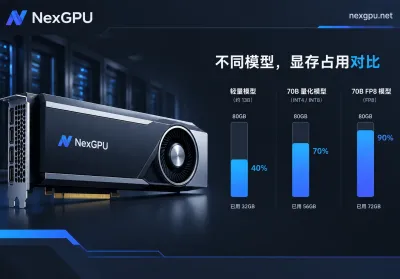
The table below provides estimated magnitudes based on parameter count and precision bit width. It is not official measured data; actual usage should be based on nvidia-smi readings after startup with your version. Running Llama 3.3 70B depends on precision and concurrency configuration. Here's a breakdown by precision:
| VRAM component | FP8 tier (weights ~70GB) | NVFP4 tier (weights ~35GB) |
|---|---|---|
| Model weights | ~70GB | ~35GB |
| KV cache (estimated for 512 input tokens, 32 concurrency) | ~8-12GB | ~8-12GB |
| Runtime overhead (framework + intermediate activations) | ~2-4GB | ~2-4GB |
| Total reference | ~80-86GB | ~45-51GB |
Therefore, for FP8 tier, dual cards are recommended (e.g., 2×48GB); with short context and low concurrency, a single 80GB card can barely run. For NVFP4 tier, a single 48GB card can start but with limited headroom; a single 80GB card is recommended for more concurrency. If you are unsure about VRAM planning, refer to How to choose GPU VRAM for detailed matching.
Old Project Migration Checklist and Four Common Pitfalls
Apply this TensorRT-LLM LLM inference acceleration tutorial to existing projects by checking the following four items:
- [ ] Does the code still call
LLM(backend='tensorrt')? Change to default backend or remove the backend parameter. - [ ] Do CI scripts still contain compilation commands like
trtllm-build? Remove them all. - [ ] Are the weights in old checkpoint conversion format? Change to HuggingFace format or re-quantize with ModelOpt.
- [ ] Does the dependency lock file still pin the tensorrt pip package? Remove that dependency.
FAQ
What if the trtllm-build command is not found after installing 1.2?
This is normal; 1.2 has completely removed this command. Use trtllm-serve or the Python LLM API to start directly.
Does TensorRT-LLM still require compiling an engine?
Not since version 1.2. The PyTorch-native backend loads weights directly and runs. For old projects, follow the migration checklist to remove compilation steps.
Which is better, FP8 or NVFP4?
FP8 is compatible with Hopper and Blackwell, has less precision loss, and suits general production. NVFP4 only supports Blackwell and uses about half the VRAM, suitable for VRAM-limited scenarios. If you have a B200 with tight VRAM, prioritize NVFP4.
Which is faster, TensorRT-LLM or vLLM?
There is no absolute answer. Throughput depends on sequence length, prefix reuse rate, and GPU architecture: for long sequences with high prefix reuse, TensorRT-LLM often wins; for short requests with high concurrency, vLLM may be more stable. It is recommended to test with the same request distribution on your target GPU.
How much VRAM is needed to run Llama 3.3 70B?
For FP8, roughly 80GB of VRAM (including KV cache headroom) is required; dual cards or 2×48GB are recommended. For NVFP4, about 50GB is needed; a single 80GB GPU provides comfortable operation. For multi-card parallelism, you can refer to the approach in vLLM multi-card tensor parallelism configuration guide.



Comments(0)