 NexGPU-算力租赁,GPU服务器,GPU云算力,AI服务器租用-新闻博客
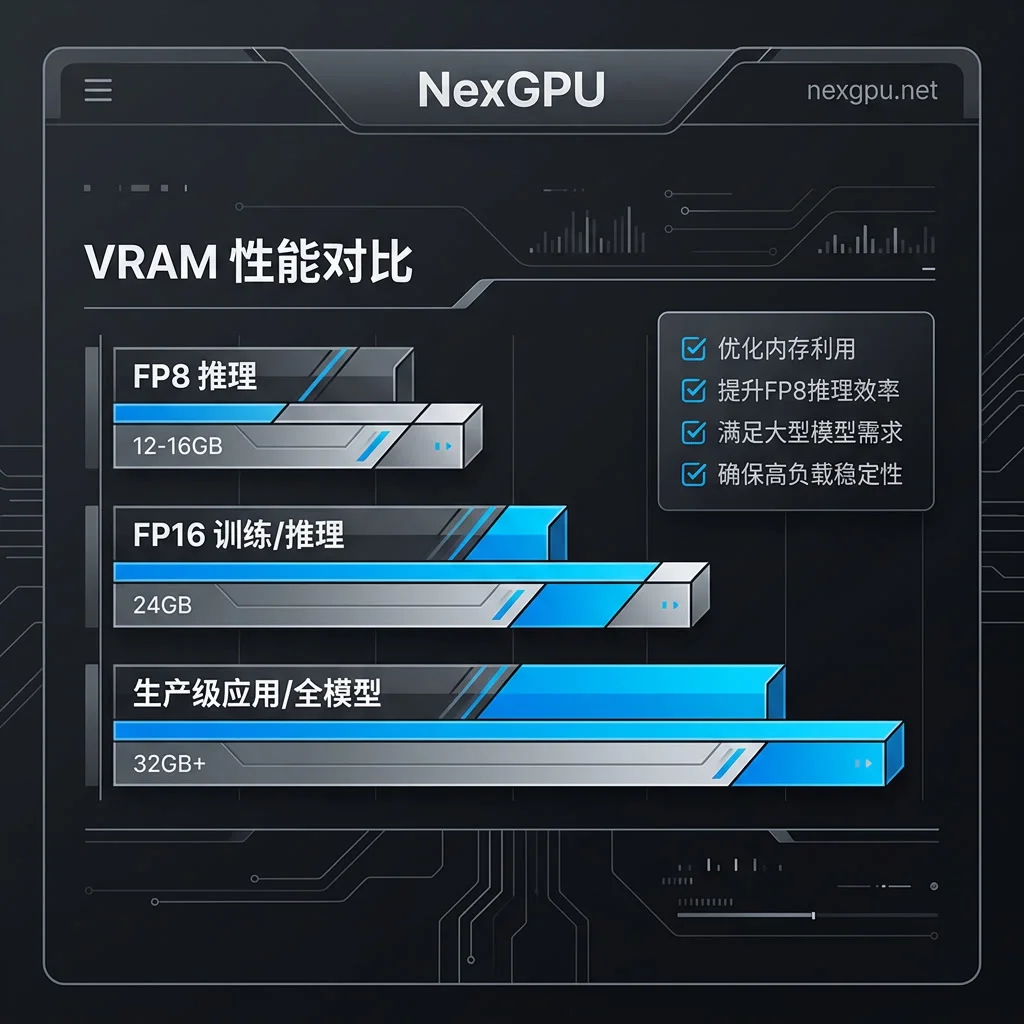
Let's start with the conclusion: the cloud GPU memory requirements for FLUX.1 [dev] and [schnell] fall into three tiers based on precision and use case—FP8 quantized 12-16GB can handle single image generation, FP16 full precision requires 24GB+ and usually needs CPU offloading, and production-level complex workflows are recommended to have 32GB+. This conclusion is based on data from the official model card by Black Forest Labs. Below, we'll break down the memory budget step by step and provide a hands-on cloud deployment process.
Before Deploying, Ask Yourself Three Questions: Resolution, Extension Nodes, and Concurrency
Before choosing a GPU, clarify your actual image generation scenario, because these three factors directly determine which memory tier you fall into:
- Output resolution: The difference in intermediate tensor usage between 512×512 and 1024×1024 is significant and can spike peak memory.
- Whether you add extension nodes: LoRA, ControlNet, and high-resolution upscaling all add extra memory on top of the DiT backbone's intermediate feature maps.
- Concurrency needs: For batch generation or running multiple tasks simultaneously, peak memory scales approximately linearly with the number of concurrent tasks.
If you only generate single images at 1024 base resolution without any extensions, a 16GB card in the FP8 tier can handle it. But if you add ControlNet or want stable concurrency, you'll need to re-evaluate using the three memory calculations below.
First Calculation: How Much Does the 12B DiT Backbone Occupy in FP16 and FP8?
The core architecture of FLUX.1 is a Rectified Flow Transformer backbone with approximately 12B parameters. At full precision (FP16/BF16), just the weights and inference peaks are quite substantial. According to the official FLUX.1-dev model card and the inference repository, the overall FP16 inference peak is around 24-33GB.
With FP8 quantization (such as FP8-E4M3FN), the backbone weights can be compressed to around 12-16GB—this is key to running single image generation on a 16GB GPU. But note, the backbone is just the first calculation; the text encoders are the real "hidden killer" that can overwhelm 24GB.
Second Calculation: T5-XXL and CLIP-L Text Encoders Are the Ones That Push Beyond 24GB
FLUX.1 also comes with two text encoders: T5-XXL (about 4.5B parameters) and CLIP-L. At full precision and always resident in memory, they, along with VAE decoding, push the overall peak higher. According to the official model card, a 24GB GPU cannot keep all weights resident in memory during inference if enable_model_cpu_offload is not enabled.
To answer "Is 24GB enough for flux.1 schnell?", we need to consider: schnell and dev have similar weight sizes. Running a single image with CPU offloading can barely work, but if you want stable concurrency or add extensions, 24GB is not a comfortable zone. The official 33GB upper limit often occurs when the encoders and VAE are resident.
Third Calculation: LoRA, ControlNet, and High-Resolution Intermediate Tensors
When stacking multiple LoRA layers or ControlNet structural controls in ComfyUI, the added weights and intermediate feature maps significantly increase peak memory. This is the root cause of "comfyui running flux with controlnet out of memory"—it's not that the backbone weights double, but rather the intermediate tensors surge during control and upscaling.
For 1024 resolution generation with ControlNet, an FP8 16GB card might OOM during the decoding phase. At that point, you either lower resolution, enable VAE Tiling, or switch to a larger GPU model. It's recommended to prioritize keeping weights resident, then consider extension nodes, otherwise frequent swapping will noticeably slow things down.
How to Choose Among Three Memory Tiers: The Boundaries of 16GB, 24GB, and 32GB+
Summarize the three calculations into the table below for easy reference by scenario:
| Memory Tier | Suitable Scenarios | Boundaries and Cautions |
|---|---|---|
| 12-16GB (FP8) | Single image, 1024 base resolution, no extensions | Adding ControlNet or high-resolution upscaling may easily OOM |
| 24GB (FP16+offloading) | Single image, can add a few LoRAs | Requires CPU offloading, which introduces latency from bus transfers |
| 32GB+ (full precision resident) | Production workflows, batch concurrency | Eliminates bus bottleneck, stable image generation |
For the question "Should I use a 4090 or L40S for flux.1?", a single 4090's 24GB requires offloading in FP16, while the L40S's 48GB can keep the DiT and T5-XXL fully resident—making the latter a solid choice for production environments. For more details, refer to How to Choose GPU Memory.
Flux.1 Model Cloud GPU Deployment Tutorial: Environment Prep, Weight Pulling, and Workflow Launch
The following is a reproducible deployment process for this Flux.1 cloud GPU deployment tutorial, using NexGPU's pay-as-you-go instances so you can first test with hourly resources:
- Environment Setup: Verify driver and CUDA environment, install PyTorch and diffusers/ComfyUI dependencies.
- Pull Weights: Download FLUX.1-dev or schnell weights from the official Hugging Face repository, making sure to also download the T5-XXL and CLIP-L encoders.
- Choose Precision Tier: For 16GB GPUs, use FP8 quantization (such as FP8-E4M3FN); if you have ample memory, use FP16/BF16 full precision.
- Load Workflow: Import the workflow JSON in ComfyUI or use Diffusers to write an inference script.
- Generate First Image and Record Metrics: Observe peak memory and single image generation time for future cost calculations.
If you encounter OOM, refer to GPU Out of Memory Solutions to troubleshoot node memory release issues.
Trade-offs of CPU Offloading and Quantization: Saving Memory at the Cost of Slower Steps
CPU offloading (enable_model_cpu_offload), Sequential CPU Offload, and VAE Tiling can all reduce peak memory, but the cost is dynamic weight transfers over the PCIe bus per batch, significantly increasing generation latency. Latency mainly occurs during the weight swap in and out steps, not during computation itself.
In batch production scenarios, frequent offloading turns each image's time into "transfer + compute" sum, greatly reducing efficiency. Therefore, enterprise-level applications typically choose GPUs with 32GB+ memory (such as L40S rental, A100) to keep DiT and T5-XXL fully resident.
Converting Hourly Rental to Per-Image Cost: What Metrics to Record
To answer "How much does flux.1 cloud GPU cost per hour?", you can't just look at the hourly price; you need to factor in your actual usage. On-demand cloud platforms (like NexGPU) are suitable for starting with hourly tests before committing to long-term specs, to avoid waste.
Record these four metrics:
- Peak GPU memory: To determine if the GPU type is suitable.
- End-to-end time per image: Including loading, inference, and decoding.
- Batch concurrency: The number of images generated simultaneously.
- Retry rate: Resource waste due to OOM.
Use "hourly price ÷ (3600 ÷ seconds per image)" to get the GPU cost per image. Don't forget to include retries; otherwise, your estimate will be low. You can also read ComfyUI Multi-GPU Parallel Rendering Optimization to learn how to distribute costs across multiple GPUs.
Deployment Checklist: Four Must-Checks
- [ ] Measure actual peak memory, not just model weight size.
- [ ] Confirm whether text encoders are resident to avoid hidden 24GB usage.
- [ ] Reserve clear memory headroom for LoRA/ControlNet (based on your measured idle peak, not the limit).
- [ ] Decide whether upgrading to 32GB+ is worth it for concurrency.
Frequently Asked Questions
How much VRAM does flux.1 dev need?
With FP8 quantization, 12-16GB can run single images; FP16 full precision is recommended with 32GB+ to keep all weights resident. If you enable CPU offloading, 24GB can barely work, but latency increases.
Is 24GB enough for flux.1 schnell?
For a single image with CPU offloading, yes. But with concurrency or extensions, it may OOM. 32GB+ is recommended for a stable experience.
Will image quality degrade with FP8 quantization?
FP8 quantization theoretically introduces some precision loss. The official documentation doesn't provide a quantified conclusion; we suggest comparing FP8 and FP16 under the same parameters with your real prompts before deciding.
How to fix OOM when running flux with ControlNet in ComfyUI?
First, lower resolution or enable VAE Tiling, and ensure T5-XXL and CLIP-L are resident. If it still OOMs, switch to a GPU with 32GB+ memory or reduce ControlNet layers.
Should I use a 4090 or L40S for flux.1?
A single 4090's 24GB will run out of memory in FP16 without offloading; you'll need CPU offloading. The L40S's 48GB can keep all weights resident, making it more stable for production. If budget is tight, you can rent a 4090 to test first; otherwise, go straight to the L40S.
When finalizing your selection, consider NexGPU's range of GPU models and pay-as-you-go pricing. First, test your complete workflow on an hourly instance to measure peak memory and per-image time, then decide on long-term specs. Pre-built models and application templates can save environment setup time. The advice from this Flux.1 cloud deployment tutorial: start by renting an instance in the FP8 tier to run your workflow and record peak memory, then decide whether to upgrade to 32GB+.



Comments(0)