 NexGPU-算力租赁,GPU服务器,GPU云算力,AI服务器租用-新闻博客
When self-deploying Llama models, what really trips people up isn't the commands—it's three decisions: how much VRAM the model needs at your chosen precision, whether a single GPU suffices or you need to shard across multiple GPUs, and when the billing stops after you're done. Once you settle these three, the actual deployment takes about twenty minutes.
Let's go through it in the order you'd actually do things.
Calculate VRAM first, then pick a GPU
VRAM requirements consist of two parts: weight storage + KV cache. The weight part is easy to estimate: number of parameters × bytes per parameter. FP16 is 2 bytes, FP8 about 1 byte, INT4/AWQ about 0.5 bytes, plus 10%–20% for framework overhead and activations.
Applying this to the two common tiers:
- 8B class (like Llama 3.1 8B): FP16 weights are about 16GB. Add KV cache and overhead, and you need at least 16–24GB of available VRAM per GPU for comfort. An RTX 4090 or A10G is enough; a 24GB card leaves plenty of KV space for concurrency.
- 70B class (like Llama 3.3 70B): FP16 weights start at around 140GB, too big for one GPU. Typically you need two 80GB A100/H100s with tensor parallelism. With FP8 or INT4/AWQ quantization, the requirement drops to 40–80GB, so a single 96GB card can handle it, or you can shard across two 32GB/48GB cards.
Quantization isn't free—INT4 can cause noticeable quality loss on long contexts and complex reasoning, while FP8 is milder. If your downstream tasks are customer Q&A, summarization, or structured extraction, quantization is usually fine. For code generation or multi-step reasoning, try FP8 first, don't jump straight to INT4. For specifics on how quantization levels affect VRAM, see The impact of FP8 and INT4 quantization on GPU memory.
One more easily overlooked variable: context length. Llama 3.1 supports up to 128K context, but the KV cache grows linearly with context length and concurrency. A single request with 128K context on an 8B model can consume over a dozen GB just for the KV cache. So base your VRAM budget on "the context you'll actually use × your actual concurrency," not the maximum on the model card.
Once you've done this math, pick the machine. The official model-to-GPU selection page lists VRAM thresholds per model, so you don't have to re-derive it.
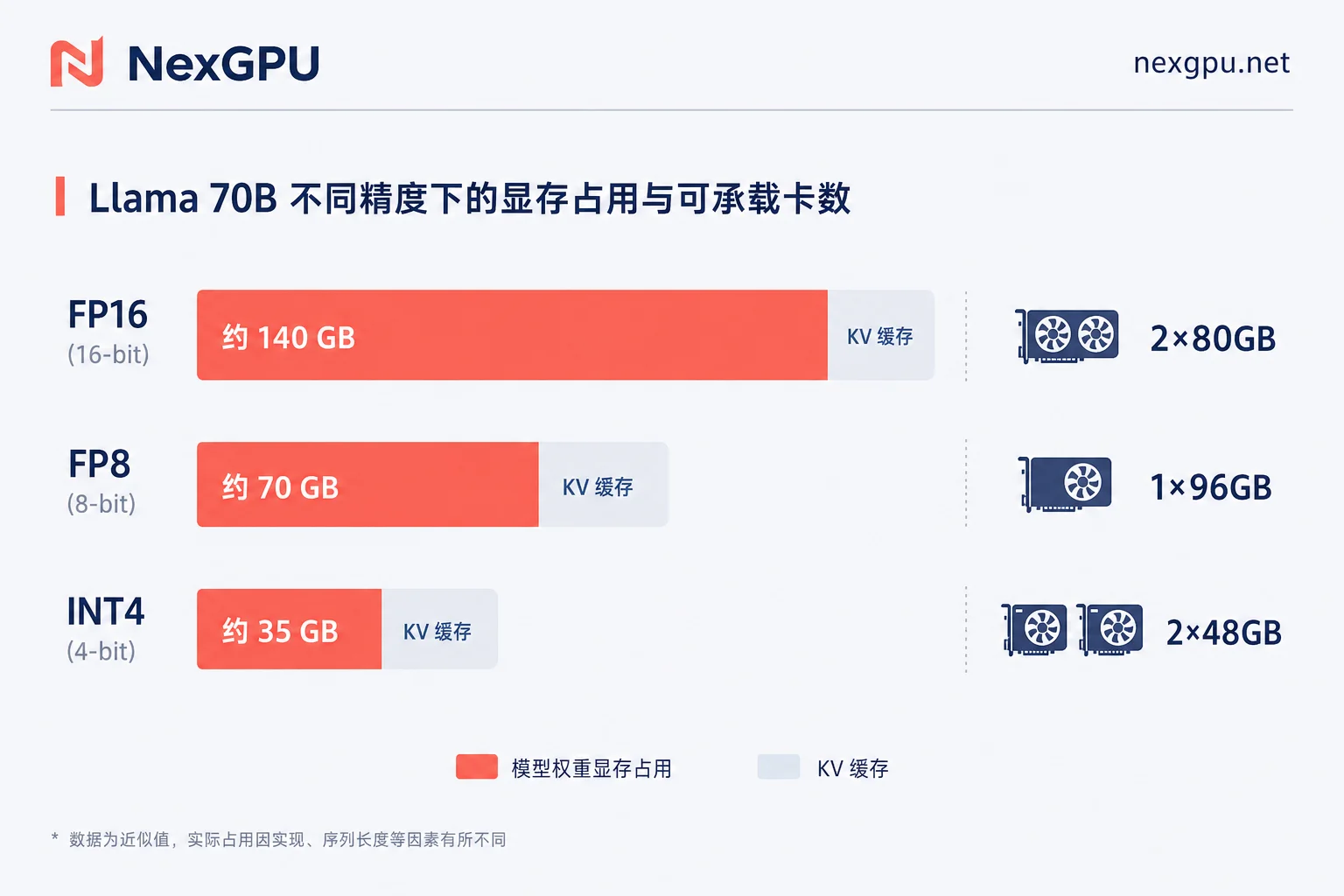
Image: don't start from a bare OS
vLLM is sensitive to CUDA, PyTorch, and driver version matching. Installing dependencies from a blank Ubuntu can easily eat one or two hours on compiling flash-attention or resolving version conflicts—and that time is billed by the hour.
Using a pre-built image template is more cost-effective. The image template page has vLLM, TGI, Ollama, PyTorch, and other common environments ready to use. The exact pre-installed vLLM and CUDA builds depend on what's shown in the console. After the instance starts, run vllm --version and nvidia-smi to confirm, which saves troubleshooting later.
If the versions don't match what you need (e.g., a new model architecture requires a newer vLLM), running pip install -U vllm on top of the image is usually more reliable than installing from scratch.
Pulling weights: Meta's official repo is gated
Meta's official Llama weights on Hugging Face are a gated repo; cloning directly returns 401. Two steps:
- Sign Meta's usage agreement on the model page with your HF account and wait for approval (usually quick, but not instant).
- Configure an access token on the instance:
export HUGGING_FACE_HUB_TOKEN=hf_xxxxxxxxxxxxIf you use a community-quantized version (e.g., third-party AWQ/GPTQ repos), most are not gated, so you can skip this step—but check that the repo's quantization config is compatible with your vLLM version.
When downloading, specify the cache directory to a data disk:
export HF_HOME=/workspace/hf_cacheThis step is crucial; we'll revisit it when discussing costs—70B weights are often over a hundred GB, and which disk you put them on directly determines how much storage fee you pay daily after stopping.
Single-GPU launch: one command to serve
vLLM is the mainstream choice for self-deployment mainly because of PagedAttention and continuous batching. On the same GPU, a native Hugging Face pipeline wastes a lot of compute under concurrency due to padding and memory fragmentation. By paging the KV cache, vLLM achieves an order-of-magnitude higher throughput and memory utilization. Single-user tinkering may not show it, but with concurrent requests the difference is immediate.
Starting an 8B on a single GPU:
vllm serve meta-llama/Llama-3.1-8B-Instruct \
  --host 0.0.0.0 \
  --port 8000 \
  --gpu-memory-utilization 0.90 \
  --max-model-len 8192
(Older vLLM versions use python -m vllm.entrypoints.openai.api_server --model ...; parameter meanings are the same.)
Two parameters deserve special mention:
--gpu-memory-utilization: The fraction of VRAM vLLM is allowed to use, default 0.9. It determines how much space is left for KV cache beyond weights. If no other processes share the GPU, push it to 0.95 to fit more concurrency; if other things run on the same GPU, lower it.--max-model-len: Maximum context length. If unset, vLLM reserves KV cache based on the model's max config (e.g., 128K), and if VRAM is insufficient it fails to start. Set it to what you actually need; 8K or 16K is often enough, and the freed VRAM becomes concurrency.
The startup log prints a line like # GPU blocks: xxxx, which is the number of KV cache blocks allocated. If the number is too small, concurrency is limited—adjust the above two parameters.
Multi-GPU: how to enable tensor parallelism
When one GPU can't fit the model (e.g., unquantized 70B), just add a parameter:
vllm serve meta-llama/Llama-3.3-70B-Instruct \
  --tensor-parallel-size 2 \
  --host 0.0.0.0 --port 8000 \
  --gpu-memory-utilization 0.92 \
  --max-model-len 8192
--tensor-parallel-size N shards each layer's weights horizontally across N GPUs for parallel computation. A few caveats:
- All N GPUs must be identical. Mixing different models limits you to the weakest GPU or even prevents startup.
- N must divide the model's number of attention heads, so practical choices are 2, 4, 8, not arbitrary numbers.
- Tensor parallelism requires an all-reduce per layer; inter-GPU interconnect bandwidth directly affects throughput. Two GPUs with NVLink on the same machine feel noticeably different from two over PCIe for 70B. Keep this in mind when choosing multi-GPU nodes; for trade-offs between GPU types, see How to choose a GPU for large model inference.
If the model is too large even for one machine, vLLM also supports pipeline parallelism (--pipeline-parallel-size) in combination, but for 70B you generally don't need it—single-node tensor parallelism suffices.
Verify the API: it's OpenAI-compatible
Once running, it exposes a standard OpenAI-format API, meaning LangChain, LlamaIndex, or any code written for the OpenAI SDK can connect by just changing the base_url.
curl http://localhost:8000/v1/chat/completions \
  -H "Content-Type: application/json" \
  -d '{
    "model": "meta-llama/Llama-3.1-8B-Instruct",
    "messages": [{"role": "user", "content": "用一句话解释 PagedAttention"}]
  }'
Note that the model field must be the full model ID you used at launch; a wrong one returns 404.
About external access: Different data centers have different default rules for public ports; port 8000 may not be directly reachable from outside. The safest and most secure approach is to first verify via SSH tunnel:
ssh -L 8000:localhost:8000 user@<实例IP> -p <端口>Then access http://localhost:8000 locally. After confirming the service works, decide whether to open the port in the console or add an authenticated reverse proxy. Exposing an unauthenticated inference API to the public internet and getting scanned for free compute is a common accident.
Three knobs when VRAM is insufficient
If startup reports OOM or KV cache is too small, adjust in this order:
- Lower
--max-model-len: Most effective, with zero impact on model quality (as long as it's not below your actual input length). - Adjust
--gpu-memory-utilization: If OOM happens at startup, the value is too high—weights blow up during loading—try lowering to 0.85. If OOM occurs occasionally during runtime, you can actually raise it to give KV more space. - Switch to quantized weights: From FP16 to FP8 or AWQ cuts weight memory in half or more.
If still stuck, consider adding GPUs. For a more systematic troubleshooting approach, see How to solve GPU Out of Memory (OOM) errors.
Beyond vLLM: when to use Ollama
Not every scenario needs vLLM. If you're just trying out a model alone, prototyping, or batch-processing a few dozen items, Ollama is faster to get started: it handles model pulling and quantization for you, and one ollama run llama3.1 gets you chatting.
The dividing line is roughly: do you need to handle concurrency? Single-user interaction and low-frequency calls use Ollama; providing a stable API to an application, with multiple concurrent requests and concern for tokens per second, use vLLM. If you want to set up a private service with Ollama, Building a private cloud GPU server with Ollama has the full workflow.
Cost boundaries: stopping and destroying are not the same
For hourly-billed instances, the bill has only three components: compute, storage, and traffic. After getting the model running, the most important thing to understand is the difference between these two actions:
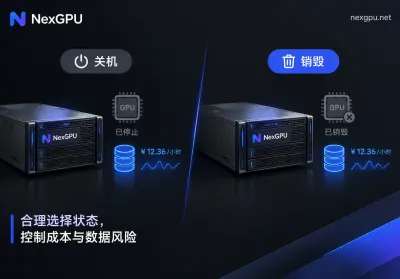
- Stop (shutdown): Compute billing pauses, but your system and data disks are still occupied—storage fees continue daily. This is especially important for Llama deployments: 70B weights plus cache can be one to two hundred GB; leave it stopped for a week and storage fees keep accruing.
- Destroy: Instance and disks are released together, all three billing components stop. Data is gone too.
So the decision is simple: if you'll use it again tomorrow, stop; if you won't touch it for a week, destroy. Before destroying, transfer anything you want to keep (fine-tuned weights, config files, test data) to object storage or locally. The weights themselves don't need to be kept—you can re-pull next time; pulling incurs traffic fees, usually cheaper than keeping a large data disk for a whole week.
Another point useful for long-term projects: the unit price at order time is locked until the instance is destroyed. If your service runs continuously for weeks, keeping one instance without destroying is more predictable than repeatedly starting and stopping; conversely, for intermittent batch jobs, destroy-and-restart saves more.
Full billing details are on the billing page. For your first GPU rental, it's worth a look before ordering to avoid the misunderstanding that "shutting down means no cost."
A shortest path
If you want to start right now, the order is:
- Calculate VRAM needs by precision → decide 8B single-GPU or 70B dual-GPU;
- Launch a pre-built vLLM image; don't install the environment yourself;
- Configure
HUGGING_FACE_HUB_TOKENandHF_HOME(point to data disk); - Start the service with
vllm serve, and explicitly set--max-model-len; - Verify the API via SSH tunnel, then consider external exposure;
- On the day you finish, decide: stop or destroy.
The single-GPU path above is enough. If you're evaluating 70B+, multi-GPU clusters, or a permanent inference service at scale, interconnect and node selection matter far more than framework parameters—feel free to contact sales to discuss specific configurations.



Comments(0)