 NexGPU-算力租赁,GPU服务器,GPU云算力,AI服务器租用-新闻博客
When your bill is much higher than expected, don't rush to switch cards or platforms. In most cases, the unit price hasn't changed (NexGPU locks in the price from order time until the instance is destroyed). The extra money comes from one of three places: stopped but not destroyed instances still incurring storage fees by capacity, GPU time with the machine on but not computing, and repeated data transfers over the public network.
It's best to troubleshoot in order of "how hidden" the issue is, not by amount: check storage first (easiest to forget), then compute idling, and finally traffic. Whether the specs are oversized should be judged last, because that requires knowing the actual VRAM usage of your task.
Step 1: Break the bill into three items and see which one looks off
If you don't know where the money went, all later optimization is guesswork. NexGPU bills only have three items: compute, storage, and traffic. First look at the absolute value of each and how much it differs from your estimate. The item with the largest difference is your entry point:
- Compute dominates: likely idle hanging, or an oversized card;
- Storage has an unexpected charge: likely a stopped-but-not-destroyed instance, or a disk that was expanded and never shrunk back;
- Traffic is obvious: repeatedly pulling large files from the public network, or frequently transferring results out.
One caveat: billing rules are set by each platform, and field names, metering granularity, and which actions trigger charges all differ. Don't apply another platform's rules to the one you're using. This article follows NexGPU's rules (hourly billing, per-second metering, three items billed separately). For the full rules, see billing explanation.
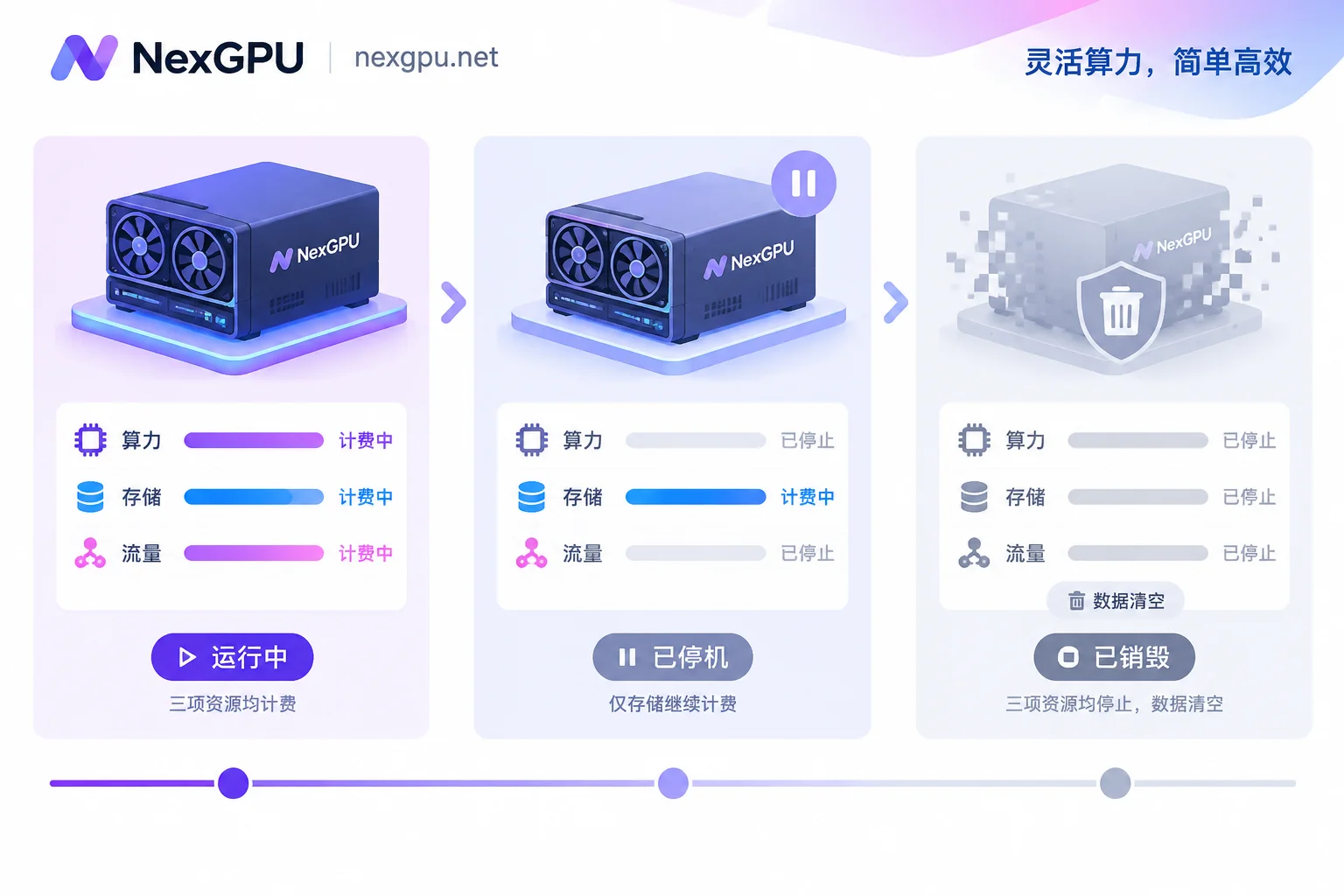
Storage: shutting down only stops compute, the disk still charges
This is the most frequently asked about and the easiest place to overspend. Modern GPU clouds generally separate compute nodes from storage volumes: when you click "shutdown/stop", you stop the hourly billing for the compute part, but the system disk and data disk still occupy physical storage and continue to be billed by allocated capacity. Only when you terminate/destroy the instance and release it does this part stop entirely.
Check three things:
1) List all instances, including stopped ones. The three you spun up for a comparison experiment last month, the one you created to test an image and never deleted—as long as it's still in the list, its disk is being billed. These "zombie instances" may not cost much per day individually, but a few of them over a month or two add up.
2) Look at how much disk you requested, not how much you wrote. Storage is usually settled by the allocated capacity limit, not actual written data. If you expanded to 500GB but only used 80GB, the bill still goes by 500GB. Disks that have been expanded, if not actively handled, will generate fixed costs long-term.
3) Go into the machine and see what's taking up space. Common culprits are checkpoints generated during training (especially saving one per epoch), HuggingFace model cache directories, Docker image layer caches, and high-resolution images and videos repeatedly generated by ComfyUI tests. After cleaning these, the disk can often be shrunk to a smaller tier.
When deciding whether to destroy, the key question is whether you still need the data. Destruction is irreversible—everything on the disk is wiped—so the correct order is move the data you want to keep first, then destroy, rather than keeping a machine as a warehouse. For the boundary between these two, see these two articles: Does a stopped GPU instance still charge? and How to save data on a rented GPU instance. To verify the exact storage fee calculation (capacity times duration), see How cloud GPU storage fees are calculated.
Compute: the platform bills for your exclusive card time, not utilization
Second big item. Billing is based on the physical duration the instance is on and exclusively occupies hardware (NexGPU meters by the second). Whether GPU utilization is 0% or 100%, the price is the same. So scenarios where money is spent without output are concrete:
- A training script finishes at 2 AM, you get up at 9 AM to shut down—seven hours fully paid;
- You leave Jupyter or SSH open for debugging, go to a meeting, eat, or leave work, and the terminal stays connected;
- An inference service is deployed for a demo, the demo ends, no one calls it, but the service is still on standby;
- Downloading weights, installing dependencies, compiling environments—tasks that don't use the GPU—are done slowly on a high-end card.
How to confirm: run nvidia-smi to see current utilization and VRAM usage; a more direct way is to compare the actual end time recorded in the task log with your shutdown time—the difference is money paid for nothing.
The fix is straightforward. For long tasks, append a shutdown or destroy command at the end of the script; don't rely on remembering. Split debugging and production runs into two phases: debug on a cheap card to get the pipeline working, then run on the target card. For environment setup, use ready-made image templates to save time; for how to choose templates, see How to choose a cloud GPU image template.
Traffic: significant charges only appear when repeatedly moving large files
Traffic is usually inconspicuous. When it shows up, it's usually these situations: re-downloading tens of GB of model weights from the public network every time you rebuild an instance (no local persistence), syncing large datasets between regions, or packaging and transferring the entire output directory back to local.
The solution is to reduce repeated transfers: download weights and datasets once and put them on a persistent disk, then mount and reuse in later instances; transfer only the files you need, compress or sample videos and images first; if you can view results directly on the machine (e.g., via SSH tunnel to Jupyter for preview), avoid downloading the whole package.
Final check: is the card too big?
If you've checked the first three items and still find it expensive, then look at specs. Typical over-provisioning: running lightweight inference like 7B/8B but spinning up a multi-GPU high-end cluster; just verifying whether a pipeline works but immediately using training-grade specs.
There are two directions to cut costs—use quantized versions to lower VRAM requirements, or switch to a single card or even consumer-grade card that's just enough. But be careful: failed reruns due to insufficient VRAM and frequent OOMs are actually more expensive, so don't lower specs based on feeling—base it on the model's actual VRAM threshold. For which card to pair with each model, the official model-to-card guide lists the mapping by model. For VRAM and bandwidth trade-offs in inference scenarios, see How to choose a GPU for large model inference.
Before the next startup, settle these things
Troubleshooting is remediation; the real money-saving actions happen before startup:
- Estimate duration before starting: have a rough idea of how many hours this task will run; if it exceeds, check if it's stuck;
- Destroy as soon as the task ends: decide in advance where the data you want to keep will go, move it before destroying; don't use "stop and leave it" instead of archiving;
- Request disk on demand: better to expand later than to start with a big disk you won't fill;
- Give every long-lived instance a reason: if you can't say why it should stay, it's just burning money.
Go through this order, and the extra money can usually be traced to one or two specific instances or a specific habit. If after checking you find the card type and duration themselves are unsuitable, you can go to the pricing and available node page to re-select a configuration based on current needs—hourly billing, no minimum spend or contract, so the cost of changing configurations is controllable.




Comments(0)