 NexGPU-算力租赁,GPU服务器,GPU云算力,AI服务器租用-新闻博客
When long-context inference reports OOM, it's usually not because the model weights can't fit, but because the KV Cache grows with context length and concurrency, filling up GPU memory. You can handle it in this order: first identify which step the OOM occurs at, then estimate the size of the KV Cache, and then try adjustments in increasing order of cost: limit length and concurrency, quantize the KV Cache to FP8, enable chunked Prefill and prefix caching, and offload the KV Cache to CPU memory. If none of these suffice, consider multi-GPU tensor parallelism, switching to a GPU with more memory, or switching to a model with a smaller KV Cache.
The parameters below use vLLM as an example. Tools like SGLang, TGI, llama.cpp, Ollama also have similar capabilities, but the parameter names and level of support differ, so refer to their respective documentation.
Step 1: Identify which stage the OOM occurs at
OOM at different stages requires different solutions:
- Error when loading the model: The weights themselves can't fit, unrelated to context length. In this case, you need to switch to a quantized weight version, or use multiple GPUs, or switch to a GPU with more memory; the KV Cache optimizations below won't help.
- Insufficient KV Cache space at startup: When vLLM starts, it first deducts the weights according to the ratio set by
--gpu-memory-utilization, then pre-allocates the KV Cache with the remaining GPU memory. If the length set by--max-model-lencan't even fit a complete sequence, it will refuse to start. This indicates that the target context exceeds the remaining memory on this GPU. - Starts but crashes when long requests come in or concurrency increases: There are two common causes. First, the Prefill stage processes a large number of tokens at once, causing a peak in activation memory. Second, the tool used doesn't do paged management, such as directly calling Hugging Face Transformers'
generate, leading to severe memory fragmentation and reservation waste.
Step 2: Estimate the size of the KV Cache
The size of the KV Cache can be calculated directly:
Bytes of KV Cache per token = 2 (K and V) × number of layers × number of KV heads × dimension per head × bytes per element
Total usage = bytes per token × context length × number of concurrent sequences
The number of layers, number of KV heads, and dimension per head can be found in the model's config.json. Let's calculate using two common architectures (BF16 precision, 2 bytes per element):
- 8B-level model (32 layers, 8 KV heads, 128 dimensions per head): about 128KB per token, about 16GB for a 128K context. The weights themselves are about 16GB, so a 24GB GPU cannot run a single 128K sequence.
- 70B-level model (80 layers, 8 KV heads, 128 dimensions per head): about 320KB per token, about 40GB for a 128K context. The weights themselves are about 140GB.
Both examples use GQA (Grouped Query Attention), where the number of KV heads is much less than the number of attention heads. If a model has the same number of KV heads as attention heads, the KV Cache will multiply. Also, total usage is proportional to concurrency: running 4 concurrent 128K requests requires 4 times the space.
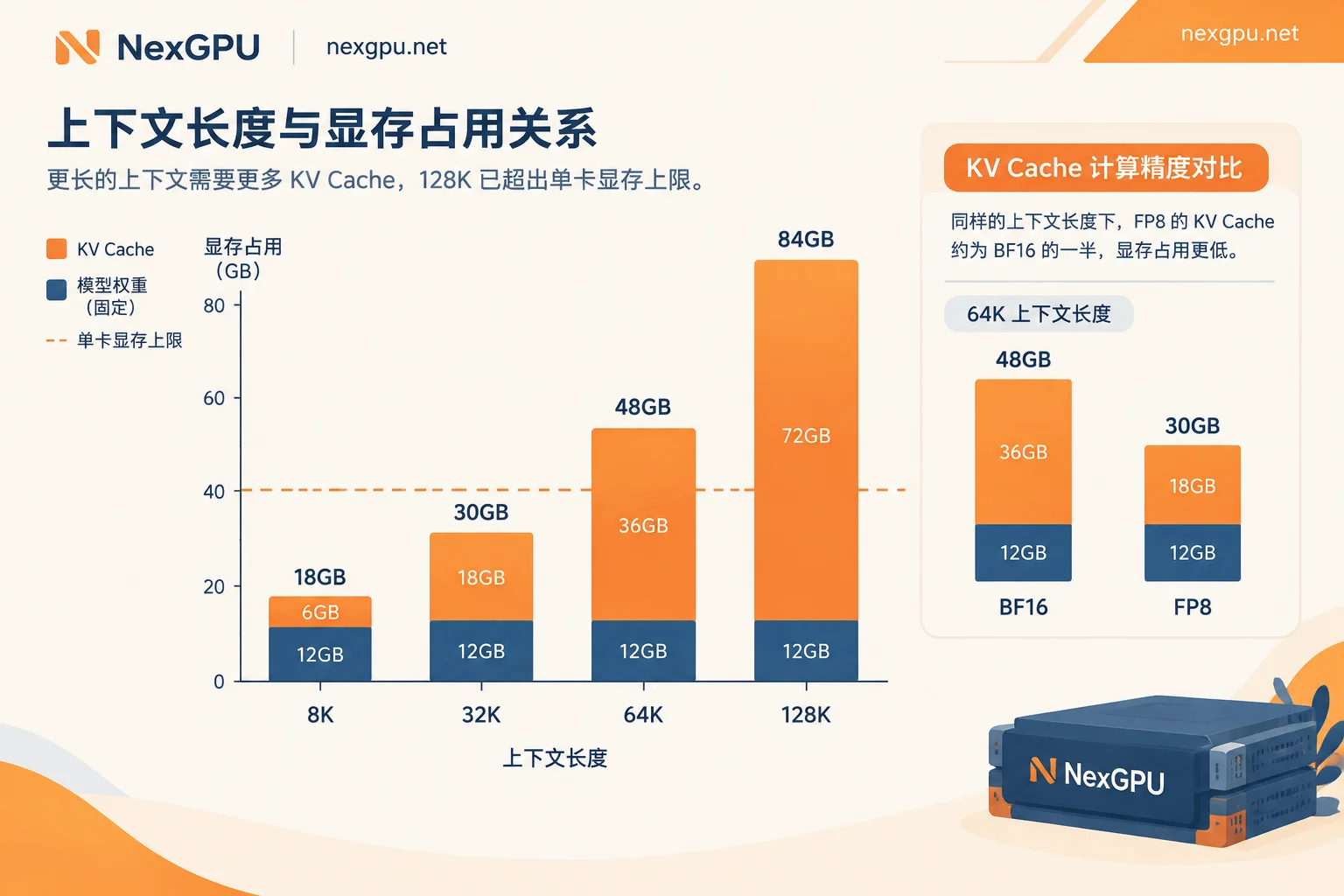
After calculating, you'll know how much you're short: if it's just a little, tuning parameters will solve it; if it's several times short, you'll need to consider adding GPUs or switching GPUs as described later.
Step 3: Adjustments possible without changing GPUs (ordered by increasing cost)
1. Set length and concurrency to values actually needed
--max-model-len Don't just max out the model's nominal length. If the longest input plus output in your business is 32K, set it to around 32K. --max-num-seqs limits the number of concurrent sequences. The KV Cache is proportional to length × concurrency; halving these two numbers roughly halves the KV Cache. If there are no other processes on this GPU, you can appropriately increase --gpu-memory-utilization, but leave some headroom.
2. Switch KV Cache to FP8
In vLLM, add --kv-cache-dtype fp8 (default is E4M3 format). The GPU memory usage of the KV Cache is reduced by about half compared to FP16/BF16, and the context length or concurrency that can fit on the same GPU is roughly doubled. According to vLLM's documentation, this has minimal impact on the accuracy of long-text retrieval and generation. However, this is only an overall conclusion; before deployment, it's best to sample and compare outputs on your own tasks. On architectures that support FP8, such as Hopper and Ada Lovelace, it may also improve throughput; performance on other architectures is subject to official documentation.
Note: Weight quantization such as AWQ and GPTQ saves the weight part, but the KV Cache won't shrink as a result. The two quantizations can be used together.
3. Enable chunked Prefill to flatten peaks
The Prefill stage for long contexts processes tens or even hundreds of thousands of tokens at once, causing a spike in activation memory. Enabling chunked Prefill (--enable-chunked-prefill) and using --max-num-batched-tokens to limit the number of tokens processed per step can flatten this peak. Newer versions of vLLM may have it enabled by default; you can confirm in the startup logs. Don't set this value too small, otherwise the time to first token for long requests will increase. For how to tune the time to first token, refer to How to optimize high inference latency of large models.
4. Enable prefix caching for repeated long prefixes
If multiple requests share a very long system prompt, or repeatedly ask questions about the same long document, you can enable prefix caching (--enable-prefix-caching, enabled by default in some versions). Already computed KV blocks are directly reused, saving both GPU memory and computation. However, if each request is a completely new document, prefix caching yields almost no benefit. It also doesn't reduce the GPU memory usage of a single ultra-long request itself.
Engines like vLLM and SGLang come with PagedAttention, which manages the KV Cache in fixed-size pages to avoid fragmentation and reservation waste. If you're currently running long contexts directly with Transformers, switching to such an engine can often save a lot of GPU memory.
5. Offload KV Cache to CPU memory
When GPU memory truly can't fit, you can use tiered storage solutions like vLLM's OffloadingConnector to asynchronously move inactive or overflowing KV Cache to host memory, or even local NVMe. The cost is increased latency due to cross-device transfer, depending on host memory size and PCIe bandwidth. This approach is suitable for offline batch processing and long document analysis where latency is acceptable; use with caution for low-latency interactive services. When renting GPUs, also confirm whether the instance's host memory is sufficient. The specific configuration varies greatly between versions; refer to the current vLLM documentation.
Step 4: If still not enough, add GPUs, switch GPUs, or switch models
- Switch to a single GPU with more memory: If calculation shows that a single large-memory GPU can fit it, this is usually simpler than multiple GPUs, with no inter-GPU communication. For how large a model and how long a context different GPU memory tiers can handle, refer to What size model can a 48GB GPU run.
- Multi-GPU tensor parallelism: Set
--tensor-parallel-size 2/4/8to split weights and KV Cache across multiple GPUs by attention heads, effectively expanding the total memory pool. However, speed is affected by inter-GPU interconnect; for how to choose parallelism methods, see How to choose between tensor parallelism and pipeline parallelism. - Switch to a model with a smaller KV Cache: Models with similar parameter counts but using GQA or MLA architectures often have a much smaller KV Cache. If the task allows switching models, this might be the most cost-effective solution.
Troubleshoot in this order on NexGPU
First, start an instance with the vLLM image from the image templates, and try the above parameters one by one starting from item 1. If after calculating the KV Cache you find that a single GPU is clearly insufficient, you can check the model GPU selection guide to see which GPU memory tier or how many GPUs your model needs, then decide whether to switch GPUs or go multi-GPU.
Billing is by the hour during tuning. You can stop instances that are temporarily not in use, but storage fees continue to accrue after stopping; only after confirming you no longer need the instance and its data and destroying it will all charges stop.