 NexGPU-算力租赁,GPU服务器,GPU云算力,AI服务器租用-新闻博客
On NexGPU, the hourly price of an L40S is not a fixed number. The unit price is determined by the node's specifications, network bandwidth, and current supply and demand, so the platform does not set a uniform price. The current unit price you see on the Pricing and Available Nodes page is the price used when you place an order. After you create an instance, this unit price is locked in and remains in effect until you destroy the instance.
Also note that "how much per hour" usually only covers the compute cost. The actual bill for a task consists of three parts: compute, storage, and traffic. If you only look at the hourly unit price to budget, a common mistake is forgetting storage fees: after the instance is stopped, storage fees continue to accrue.
How to Read the Unit Price, and Why L40S Prices Differ
When you open the pricing page and filter for L40S, you may see different prices for different nodes. The difference generally comes from three aspects:
- Node configuration: Even with the same L40S, the paired CPU, memory, and local disk can vary.
- Network bandwidth: If your task frequently uploads or downloads data or model weights, bandwidth has a big impact on the actual experience.
- Supply and demand changes: NexGPU's compute comes from globally distributed nodes, so prices differ when there are many idle GPUs versus when they are scarce.
When choosing a node, don't just pick the cheapest one. First confirm that the node's memory, disk, and bandwidth can support your task, then compare prices among nodes that meet the requirements. Once you place an order, the unit price is locked and won't change mid-task.
How to Estimate the Total Cost of a Task
Rather than asking "how much per hour," a more useful question is "how much will it cost to finish this job." You can estimate separately by three items:
- Compute cost ≈ locked unit price × instance runtime. The platform bills by the hour and measures by the second, with no minimum spend and no contract required. If you run for twenty minutes, you are billed for the actual runtime, with no need to round up to a full hour.
- Storage cost ≈ disk capacity × retention time. Billing starts when the instance is created and ends when it is destroyed, including the time it is stopped.
- Traffic cost: Charged by public network transmission. Downloading large model weights, pulling datasets in bulk, and uploading generated videos back to your local machine all generate traffic.
For example: you use an L40S to run LoRA fine-tuning for 3 hours, stop it when done, and keep the disk to continue tuning parameters the next day. In this case, the bill is: 3 hours of compute, plus storage from creation to final destruction, plus traffic from downloading the base model and exporting weights. The unit prices for all three items are based on the pricing page; no specific numbers are substituted here.
For a detailed calculation of storage fees, see How Cloud GPU Storage Fees Are Calculated. If your bill is already higher than expected, you can reconcile the three items of compute, storage, and traffic one by one.
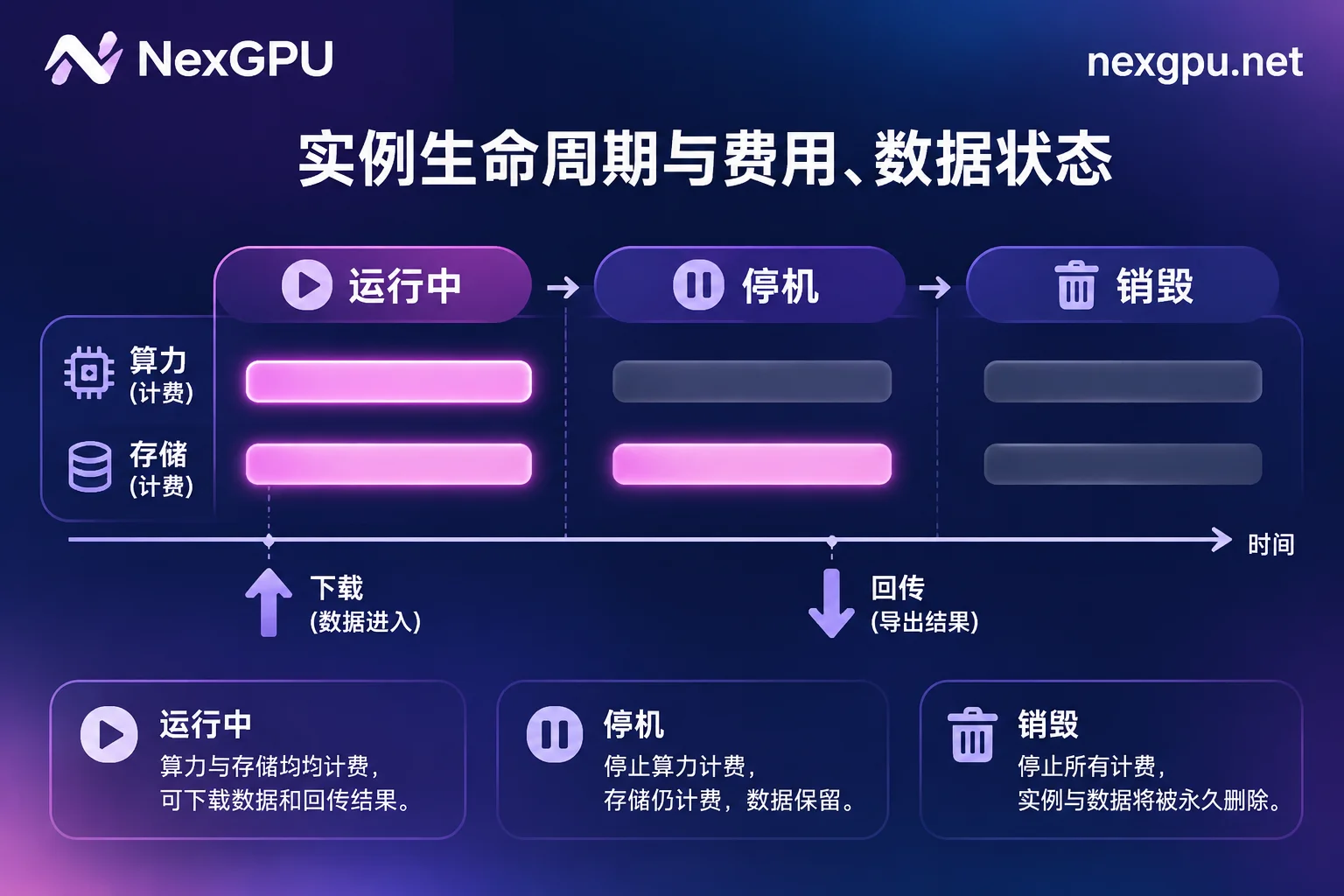
Stopping and Destroying: Which Step Stops Which Fee
| Instance State | Compute Fee | Storage Fee | Disk Data |
|---|---|---|---|
| Running | Billed | Billed | Retained |
| Stopped | Stopped | Still billed | Retained |
| Destroyed | Stopped | Stopped | No longer retained |
How to choose:
- If you will continue using it today or in the next few days, for example if the environment is just set up and the model is already downloaded, you can stop it. This way you only pay storage fees, and the next startup saves time on redeployment and re-downloading.
- If the task is finished, first download the results, weights, and logs to your local machine or other storage, then destroy the instance. If you only stop without destroying, storage fees will continue to accrue.
- For whether data can be recovered after destruction and how long a stopped instance can be retained, refer to Data and Cost Boundaries for Stopping and Destroying.
First Confirm Whether L40S Is the Right GPU for the Job
Renting the wrong GPU costs more than the unit price difference. If the GPU is too small, the task won't run and you'll have to start over; if it's too large, you waste money. Key specifications of the L40S:
- 48GB GDDR6 ECC memory, with 864 GB/s memory bandwidth;
- Ada Lovelace architecture, fourth-generation Tensor Cores, supporting the FP8 Transformer Engine;
- Includes 3 NVENC video encoding engines.
These specifications are suitable for the following tasks: inference and LoRA fine-tuning of medium-scale large models, image and video generation such as ComfyUI or Stable Diffusion, and 3D rendering. Whether a model can fit into 48GB depends on the parameter count, precision, and context length; you can refer to How Large a Model Can 48GB VRAM Run. If you are hesitating between L40S and A100, see Choose by Model Size, Concurrency, and Context.
Multi-GPU tasks require one more consideration. The L40S uses a PCIe interface and does not support NVLink. If your training requires heavy data exchange between multiple GPUs, inter-GPU communication may become a bottleneck; even if the per-GPU price is favorable, the total time may be extended. In this case, evaluate your interconnection needs first before deciding whether to use L40S in a multi-GPU setup.
Pre-Order Checklist
- The model and precision can fit into 48GB VRAM, with space left for KV Cache or activations;
- Estimate how large the system disk and data disk need to be, including model weights, datasets, and output results;
- Estimate the amount of data to download and upload, as this affects traffic fees;
- Decide whether to stop and retain after the task ends, or export results and destroy directly;
- Confirm it is a single-GPU task. If multiple GPUs are needed, evaluate interconnection requirements first.
Once these items are confirmed, go to the Pricing and Available Nodes page to see the current unit price of L40S and pick a node with suitable configuration. Then on the Image Templates page, choose an image such as vLLM, Ollama, PyTorch, or ComfyUI according to your task, and deploy with one click, which also reduces environment configuration time.



Comments(0)