 NexGPU-算力租赁,GPU服务器,GPU云算力,AI服务器租用-新闻博客
The computing power market in 2026 is undergoing a clear structural shift. On one hand, enterprise AI agent deployments, long-context large model inference, and multimodal video generation are pushing demand for inference and fine-tuning compute to new heights, with industry bodies and tech giants warning of a widening supply-demand gap. On the other hand, generational hardware upgrades make card selection richer than ever—in the consumer market, the 32GB RTX 5090 has become a popular single-card choice, while in the data center market, beyond A100 and H100, the higher-memory and higher-bandwidth H200 and B200 are now available for on-demand rental.
Meanwhile, short-term fluctuations in compute pricing and the complex qualification reviews and quota scheduling of traditional cloud providers are driving more individual creators, independent developers, and R&D teams to distributed GPU compute markets with hourly billing. But with dozens of GPU models, different billing rules, and environment configurations, how can you avoid wasting money and getting stuck on dependencies?
This guide breaks GPU rental into four stages: define requirements and select cards, filter machines and configure environments, connect to instances and run tasks, and manage lifecycle to control costs—helping you build a directly actionable framework.
1. Start with VRAM and Use Cases: How to Distinguish Consumer vs. Data Center GPUs?
The first step in renting a GPU is not comparing unit prices, but calculating the VRAM floor and communication needs of your task. Many beginners make two extreme mistakes: either renting expensive data center cards for a 7B quantized model, leaving compute idle; or using a single 24GB consumer card to handle full-parameter fine-tuning or long-context high-concurrency inference, resulting in frequent OOM (out-of-memory) interruptions.
In the NexGPU GPU Marketplace, consumer and data center GPUs are priced separately, each with clear business boundaries:
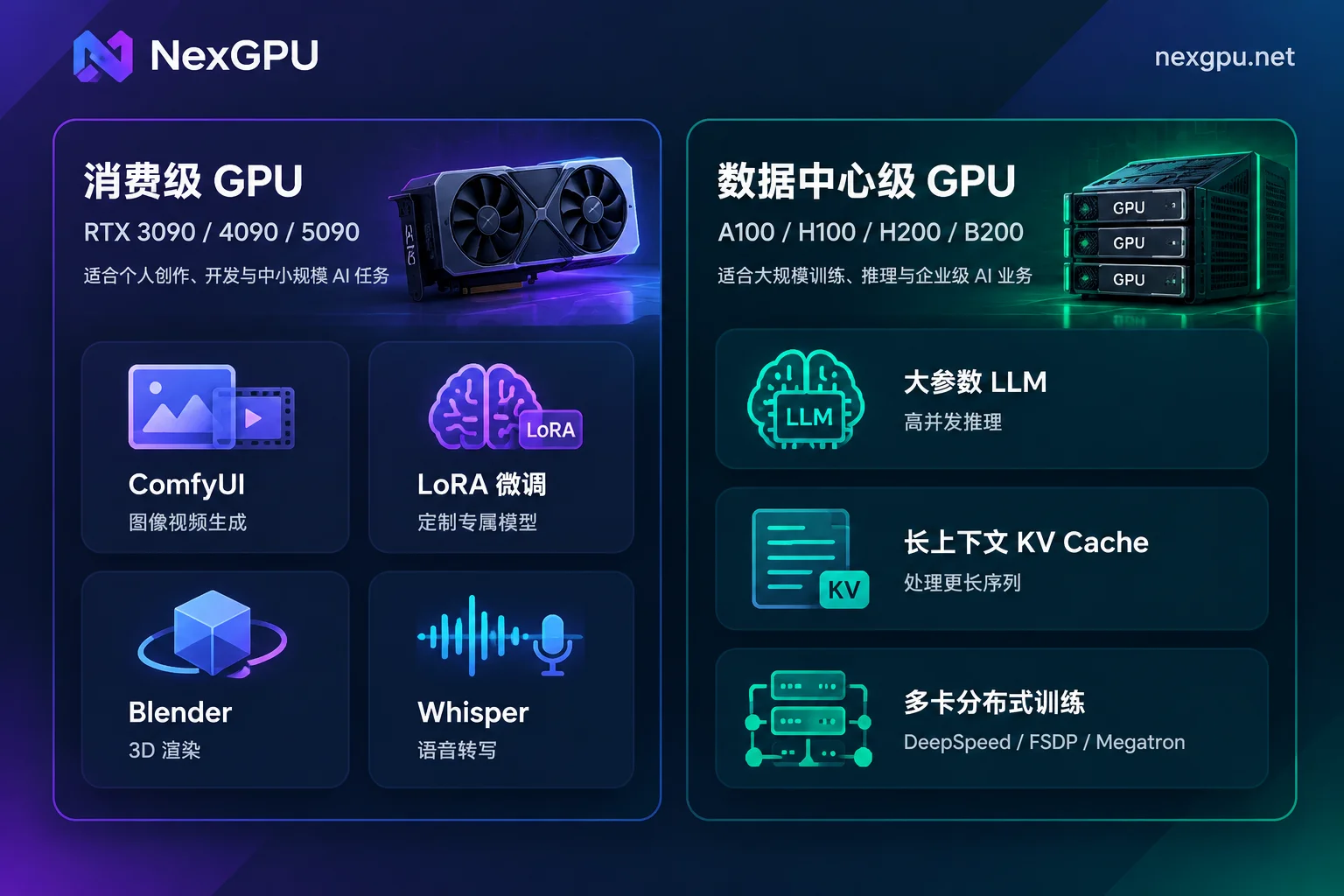
1. Consumer GPUs (RTX 3090 / RTX 4090 / RTX 5090, etc.)
These cards offer high single-card cost-effectiveness, suitable for tasks that fit on one card or don't require stringent multi-GPU high-speed interconnect:
- AI image and video generation: Use ComfyUI or AUTOMATIC1111 to run SDXL, FLUX, or video diffusion models for generation (see "How to Choose GPUs for AI Video Generation: From ComfyUI Quantized Generation, Full-Precision Output to LoRA Training").
- Small to medium model inference and lightweight fine-tuning: Use Unsloth or LLaMA Factory for QLoRA/LoRA fine-tuning, or deploy quantized open-source models with Ollama or vLLM. The RTX 5090, with larger VRAM and a new architecture, offers more headroom for KV Cache and Batch Size than the 24GB RTX 4090 when handling 4-bit quantized inference or LoRA training of medium-sized models (to learn when to upgrade, read "When Consumer GPUs Are No Longer Enough: Four Warning Signs and Criteria for Upgrading").
- 3D rendering and audio processing: Parallel rendering across multiple instances for Blender, V-Ray, etc. (see "How to Choose Solutions and GPUs for Cloud Rendering"), and batch audio transcription with Whisper, faster-whisper, WhisperX (see "How to Choose Solutions and GPUs for Whisper Deployment").
2. Data Center GPUs (A100 / H100 / H200 / B200, etc.)
When single-card VRAM exceeds 32GB/48GB, or when moving to production-grade high-throughput inference and large-scale distributed training, you need data center GPUs:
- Large models and long-context high-concurrency inference: Models with 70B parameters or more, MoE architectures, or online API services requiring extremely long contexts and high concurrency. H200 and B200 offer massive VRAM and extremely high memory bandwidth, significantly reducing the number of cards needed for tensor parallelism (TP) splitting, lowering first-token latency, and improving decoding throughput.
- Multi-GPU full fine-tuning and pre-training: Use DeepSpeed, FSDP, or Megatron for multi-GPU parallel training (for selection logic, see "How to Choose GPUs for Large Model Fine-Tuning: Three Steps Based on VRAM Budget, Fine-Tuning Method, and Open-Source Framework").
If you're unsure how much VRAM your open-source model will occupy, you can check the NexGPU Model Selection Guide instead of manually calculating weights and activations. It covers over a dozen categories including text LLMs (e.g., Qwen selection and deployment steps), image generation, video generation, speech recognition and synthesis, OCR, digital humans, 3D generation, and AI agents, detailing current versions of mainstream models, VRAM thresholds after quantization, and recommended GPUs. You can also view recommended card types, images, and estimated costs by business type on the Use Case page.
2. Filter Machines and Configure Environments: Avoid Opaque Compute and Time-Consuming Setup
In traditional rental workflows, users often face two issues: first, only looking at hourly compute price, then discovering after startup that disk, network bandwidth, or environment configuration incur extra charges, or that network quality can't handle pulling tens of GB of weights; second, spending two or three hours on a bare metal machine installing drivers, configuring CUDA, and resolving version conflicts between PyTorch and dependencies, wasting compute fees.
In per-machine rental markets, these two aspects can be solved upfront through pre-filtering and image templates (for detailed filtering, see How to Choose GPU documentation):
- See actual machine specs and itemized prices
In the GPU Marketplace, each row represents a real rentable physical machine node. You can filter directly by VRAM size, price, region, reliability, network bandwidth, minimum card count. Each machine lists "compute unit price" and "disk unit price" separately; for multi-GPU nodes, the platform rents by whole machine, and the order amount equals "per-card price × number of cards", making accounting clear. - Choose environment first, then filter cards with automatic guardrails
If you first select a runtime environment or target model and then filter machines, the system automatically checks hardware conditions—machines with insufficient VRAM are flagged with reasons, preventing the awkward situation of "pulling weights after startup and then hitting a VRAM error". Save setup time with pre-built images or your own Docker images
Visit the Image Template Library; all templates are tier-free with no extra licensing fees, pre-installed with drivers, CUDA, and corresponding frameworks, ready to use upon startup:- LLM inference: Pre-installed vLLM, TGI, Ollama, SGLang, providing OpenAI-compatible APIs immediately.
- Training and fine-tuning: Pre-installed PyTorch, TensorFlow, JAX, and LLaMA Factory, Axolotl, Unsloth.
- Image/video, speech, and data: Includes ComfyUI, AUTOMATIC1111, Whisper全家桶, RAPIDS, Jupyter, and a clean Ubuntu + CUDA environment.
- Custom Docker images: If your project strictly requires a specific CUDA minor version or private dependencies, the official site recommends directly providing your own Docker image (public or private repository) with custom startup commands and environment variables.
3. Startup and Connection: From Frictionless Registration to Direct Instance Access
For sudden experiments, short-term rendering, or urgent fine-tuning tasks, the last thing you want is to get stuck on cumbersome real-name verification, enterprise qualification approval, and GPU quota applications (for comparison of access rules across platforms, see "Do You Need Real-Name Verification and Quota Application for GPU Rental? Three Scenarios by Platform Type").
To shorten the path from "compute need" to "running code", NexGPU has streamlined registration and connection (beginners can follow the Quick Start Guide):
- No real-name verification, no card binding to view prices: Register with just an email, no real-name authentication, no quota application. After registration, you can view real-time prices of all nodes without binding a payment method; top-up supports Alipay and USDT (TRC20), and there is no hard limit on simultaneous instances, only constrained by account balance.
Three direct connection methods: After instance startup, choose according to preference (see Connecting to Instances documentation):
- Web terminal: Open a root-privileged terminal directly in the browser, suitable for quick commands or status checks.
- SSH direct connection: Each instance is assigned a public IP with mapped ports, no jump host, supports setting default public keys, convenient for direct local VS Code Remote-SSH or Cursor connection.
- One-click Jupyter: If the selected image includes Jupyter, click to enter in the browser with access token automatically included.
- Ports and visual management: Besides default connection ports, each instance reserves a set of备用 ports for exposing your own WebUI or inference API services; if you prefer not to manage large files via command line, you can one-click install a visual management panel (aaPanel) to intuitively manage files, processes, and scheduled tasks in the browser (note the panel itself consumes some disk space).
4. Transparent Billing and Lifecycle Management: Spend Every Bit of Budget Wisely
In 2026, many users reviewing compute expenses find that overspending is often not due to high GPU unit prices, but "hidden fees" and "forgetting to shut down/unreleased storage". Therefore, understanding billing rules and instance state transitions is core to controlling GPU rental costs (we previously wrote "How to Troubleshoot High GPU Rental Bills: Itemized Reconciliation by Compute, Storage, and Traffic").
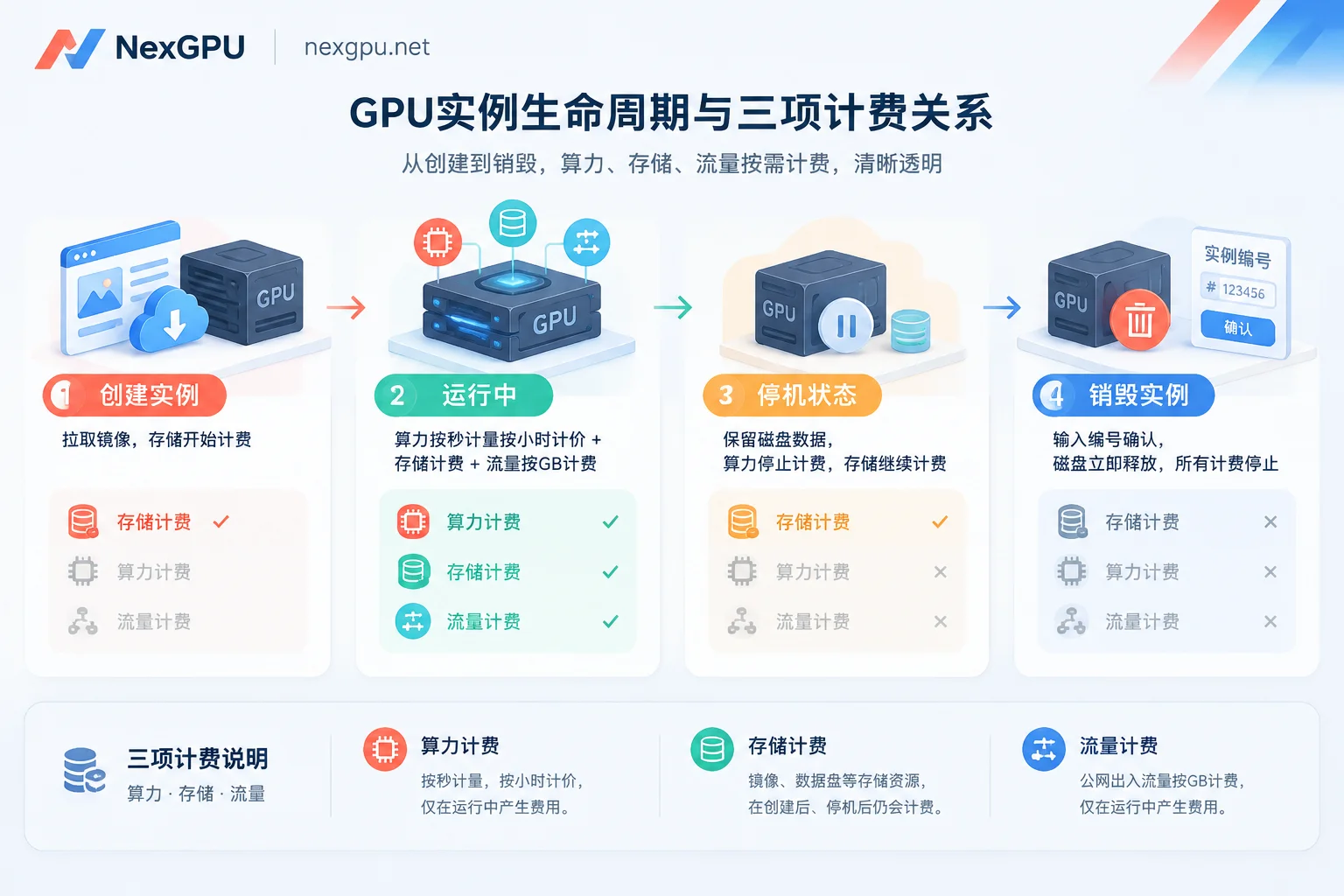
Under NexGPU Billing Rules, there are several ironclad rules about cost structure and instance management:
1. Only Three Bill Items, Price Locked at Order
Instance detail page fees include only compute, storage, and traffic. No minimum consumption, setup fees, port mapping fees, or image licensing fees, and no minimum rental duration. More importantly, the unit price at order time is locked until the instance is destroyed; even if external compute market prices fluctuate during rental, your running instance will not see temporary price increases.
2. Distinguish Billing Between "Stop" and "Destroy"
- Compute fee: Metered per second, billed per hour. Starts when instance enters "Running" state, and stops immediately upon Stop or Destroy.
- Storage fee: Billed per GB/month, starting from instance creation (including image pulling). Note: In stopped state, storage fees continue to be charged to retain disk and environment data for later restart; only after you confirm the task is completely finished and perform Destroy, the disk is released immediately and storage billing stops.
3. Note Usage Boundaries and Data Security
Each instance is an exclusive container; the platform does not read but does not back up your disk contents. Also, the platform does not support dynamic disk expansion or adding/removing port mappings after creation. Destroying an instance requires entering the instance ID for confirmation; once destroyed, the disk is released immediately and irrecoverable. Therefore:
- Before creating an instance, estimate the disk space needed for model weights, datasets, and checkpoints and allocate enough upfront.
- When balance is low, the system sends warning emails; if balance runs out, the instance automatically stops (not destroyed), allowing a buffer period to top up; only if negative balance exceeds a set duration will it be automatically destroyed.
- Before destroying an instance, be sure to sync trained weights, rendered outputs, and key logs back to local or external object storage (for more details, see Instance Management documentation and FAQ).
5. Multi-GPU Nodes and Enterprise Needs: From Self-Service Ordering to Dedicated Clusters
If your needs go beyond single-card development—such as R&D teams evaluating multi-GPU training efficiency, or compute procurement requiring stable long-term supply—rental strategy can proceed in two steps:
- Self-service validation on multi-GPU nodes: In the GPU Marketplace, filter by "minimum card count" for 2, 4, or 8-card A100, H100, H200 high-VRAM nodes, and self-order to test DeepSpeed, FSDP, or Megatron parallel runs.
- Enterprise customization and long-term solutions: When business stabilizes and requires RDMA high-speed interconnect, strict data isolation, private networks, or dedicated compute clusters, or when financial processes need reserved instances, monthly/annual billing, dedicated compute pools, contracts, corporate payment and invoicing, PO procurement, prepare a requirements list (see "How to Consult on Enterprise GPU Clusters and Reserved Instances: Prepare This Requirements List Before Contacting") and contact via the Contact Sales page or bilingual customer service.
Whether you're a beginner renting a GPU for the first time to run ComfyUI and open-source models, or an algorithm engineer dealing with VRAM and throughput daily, you can now visit the NexGPU Pricing and Marketplace page to view real-time available nodes by model, select a pre-built image, and launch your first GPU instance in minutes.