 NexGPU-算力租赁,GPU服务器,GPU云算力,AI服务器租用-新闻博客
In the open-source large model ecosystem, the Qwen series has become one of the top choices for enterprises and developers to implement private deployments, thanks to its extremely rich model matrix. Whether it's the Qwen2.5 and Qwen3 Dense series covering lightweight to medium-large sizes (such as 7B, 14B, 32B, 72B), the Qwen3-30B-A3B and flagship Qwen3-235B-A22B that introduce Mixture of Experts (MoE) architecture, or the QwQ-32B specialized in reinforcement learning reasoning and the Qwen2.5-VL for multimodal visual understanding, this vast family can adapt to almost all business scenarios.
But the rich variety also brings the dilemma of choice: When deploying Qwen, which GPU card should you choose?
Many teams experience similar struggles in the early stages of implementation: when running a 32B model on a single card, just extending the context triggers out-of-memory (OOM); when deploying multimodal Qwen-VL to process high-resolution charts or video streams, the vision encoder and KV Cache instantly consume all VRAM; or when working on multi-card nodes, dealing with CUDA drivers and compiling vLLM and SGLang takes two or three days just for environment alignment.
To avoid the pitfalls of "buying too expensive and wasting budget" or "renting too small and unable to run", we need to first calculate the VRAM requirements clearly, and then coordinate the inference framework with the compute rental mechanism. This article will sort out a frictionless Qwen deployment plan for you, from architecture VRAM accounting, GPU selection, inference engine comparison to cloud practical operations.
I. Calculate VRAM Requirements: How to Choose GPUs for Qwen Models of Different Sizes and Architectures?
Before deploying Qwen, you must first clarify the three major consumers of VRAM: model weights + KV Cache (context cache) + activation values and framework overhead. For the Qwen-VL series with added vision modules, additional VRAM must be reserved for the vision encoder and for processing high-resolution image tokens.
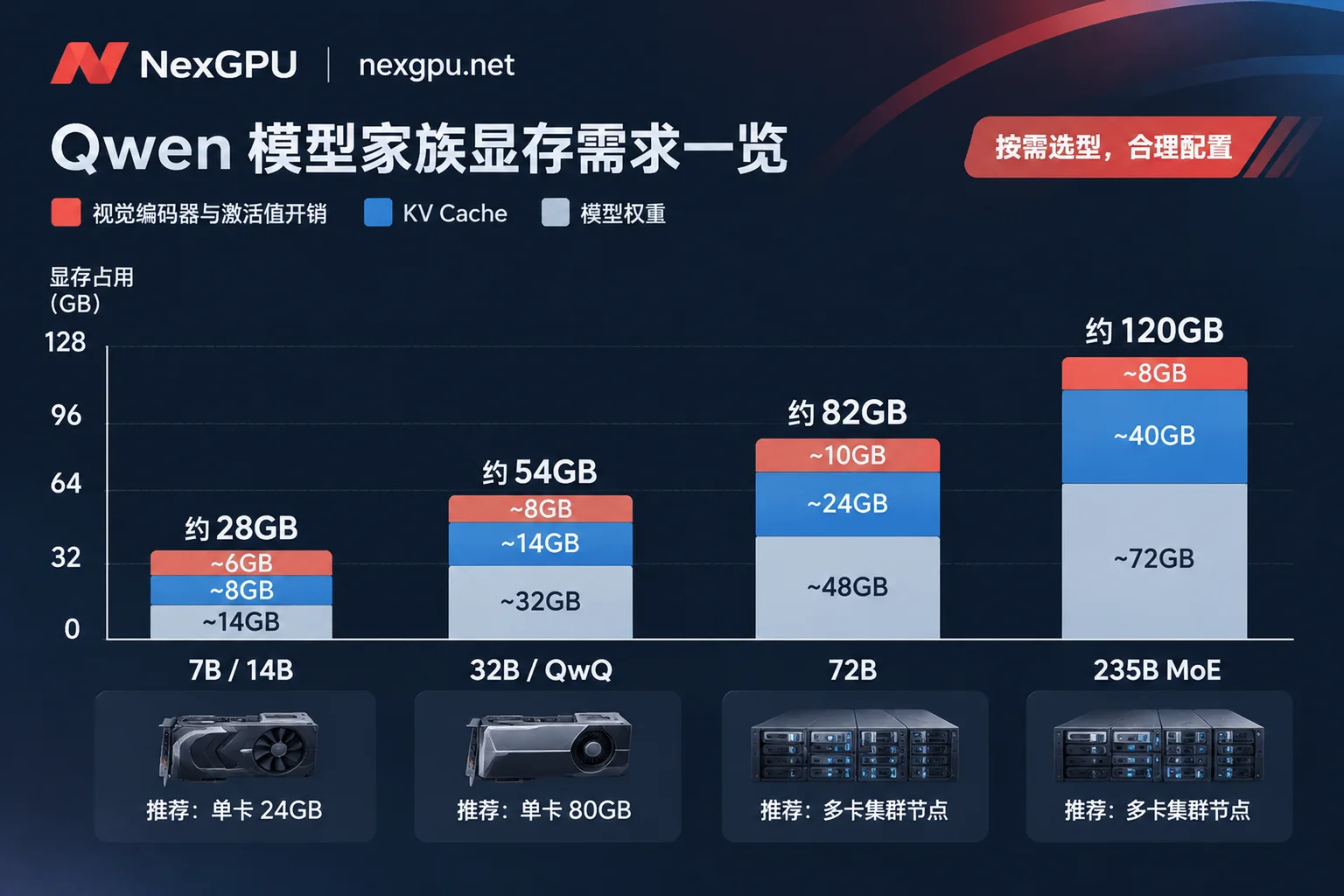
Based on community testing experience, we can divide the hardware thresholds of the mainstream Qwen family into four tiers (for the current versions of each model and the exact VRAM thresholds after quantization, it is recommended to directly consult the NexGPU model selection guide or visit the Qwen dedicated model page for real-time data from the official website):
1. Lightweight and Single-Card Sweet Spot (7B / 14B / 30B-A3B MoE)
- Applicable models: Qwen2.5-7B / 14B, Qwen2.5-VL-7B, and the MoE architecture Qwen3-30B-A3B (total parameters 30B, only 3B activated per inference).
- VRAM requirements: The 7B model in FP16/BF16 half precision occupies about 15GB~16GB for weights; with KV Cache for regular concurrency, a single 24GB VRAM GPU can run smoothly. The 14B model in half precision has weights of about 28GB~30GB; if quantized to 4-bit (INT4) via AWQ/GPTQ/GGUF, VRAM usage can be reduced to around 10GB~12GB. The lightweight MoE model like 30B-A3B, after 4-bit quantization, can also fit into a single large-VRAM consumer-grade GPU.
- GPU recommendations: A single RTX 3090 (24GB), RTX 4090 (24GB), or RTX 5090. If you are unsure about the limits of a single 24GB card, you can refer to our previous article "How to Rent an RTX 4090 Cloud Server: Capability Boundaries of 24GB VRAM, GPU Selection Pitfalls, and a Guide to Smooth Scaling from Single to Multiple Cards".
2. Enterprise Mainstream and Code/Reasoning Sweet Spot (32B Dense / QwQ-32B / VL-32B)
- Applicable models: Qwen3-32B, Qwen2.5-Coder-32B, QwQ-32B (reinforcement learning reasoning model), Qwen2.5-VL-32B.
- VRAM requirements: The 32B scale is currently the golden size for enterprises to balance "deep reasoning capability" and "inference cost". In FP16/BF16 full precision, the model weights alone require about 64GB VRAM; plus KV Cache for 32K~128K long context, the total VRAM requirement is usually above 75GB~90GB. If INT4 quantization is used, the VRAM threshold can be reduced to around 20GB~24GB, allowing a single 24GB card to barely run, but for high concurrency or enabling long chain-of-thought (Thinking Mode), it is still recommended to leave sufficient headroom.
GPU recommendations:
- Quantization testing/medium concurrency: A single RTX 4090 / 5090 (running INT4/GGUF quantized version), or 2×RTX 4090 (48GB total VRAM, running INT8 quantization or long-context INT4).
- Full precision/production high concurrency: A single A100 (80GB), H100 (80GB), or a 4×RTX 4090 multi-card node.
3. Large-Scale Complex Tasks and Long Text Analysis (72B Dense / VL-72B)
- Applicable models: Qwen2.5-72B, Qwen2.5-VL-72B, Qwen2.5-Math-72B.
- VRAM requirements: In FP16 precision, weights exceed 144GB; even with INT4 quantization, over 40GB~48GB of VRAM is required.
- GPU recommendations: For quantized versions, choose 2×RTX 4090 / 5090 or a single A100 / H100 (80GB); for FP16 production environments, it is recommended to rent 2×A100 / H100 (80GB) or H200 nodes.
4. Flagship MoE and Ultra-Large Clusters (Qwen3-235B-A22B)
- Applicable models: Qwen3-235B-A22B (total parameters 235 billion, activated parameters 22 billion).
- VRAM requirements: As a flagship version benchmarked against top closed-source models, full precision or FP8/INT4 deployment requires cross-card parallelism.
- GPU recommendations: In the NexGPU compute market, filter by "minimum number of cards" to select 2~4 H100 / H200 or 4~8 A100 multi-card full nodes. If you are interested in the generational differences of data center-grade GPUs, you can further read "2026 H100 Rental Practical Guide: GPU Selection Logic under Supply-Demand Reversal, A100/H200 Comparison, and Cost Calculation".
GPU selection pitfall tip: When creating an instance on NexGPU, if you are unsure whether a machine can fit the target model, you can "first select environment/model then filter machines" in the console—machines with insufficient VRAM will be automatically marked with reasons by the system, directly avoiding the embarrassment of discovering OOM after boot. For details, please refer to How to Choose GPU documentation.
II. How to Choose an Inference Framework? Scenario Alignment of Ollama, vLLM, SGLang, and TGI
After choosing the GPU, the second step is to decide which inference engine to use to launch the service. The underlying scheduling logic of different frameworks varies greatly, directly affecting the first token latency (TTFT) and concurrent throughput after Qwen deployment.
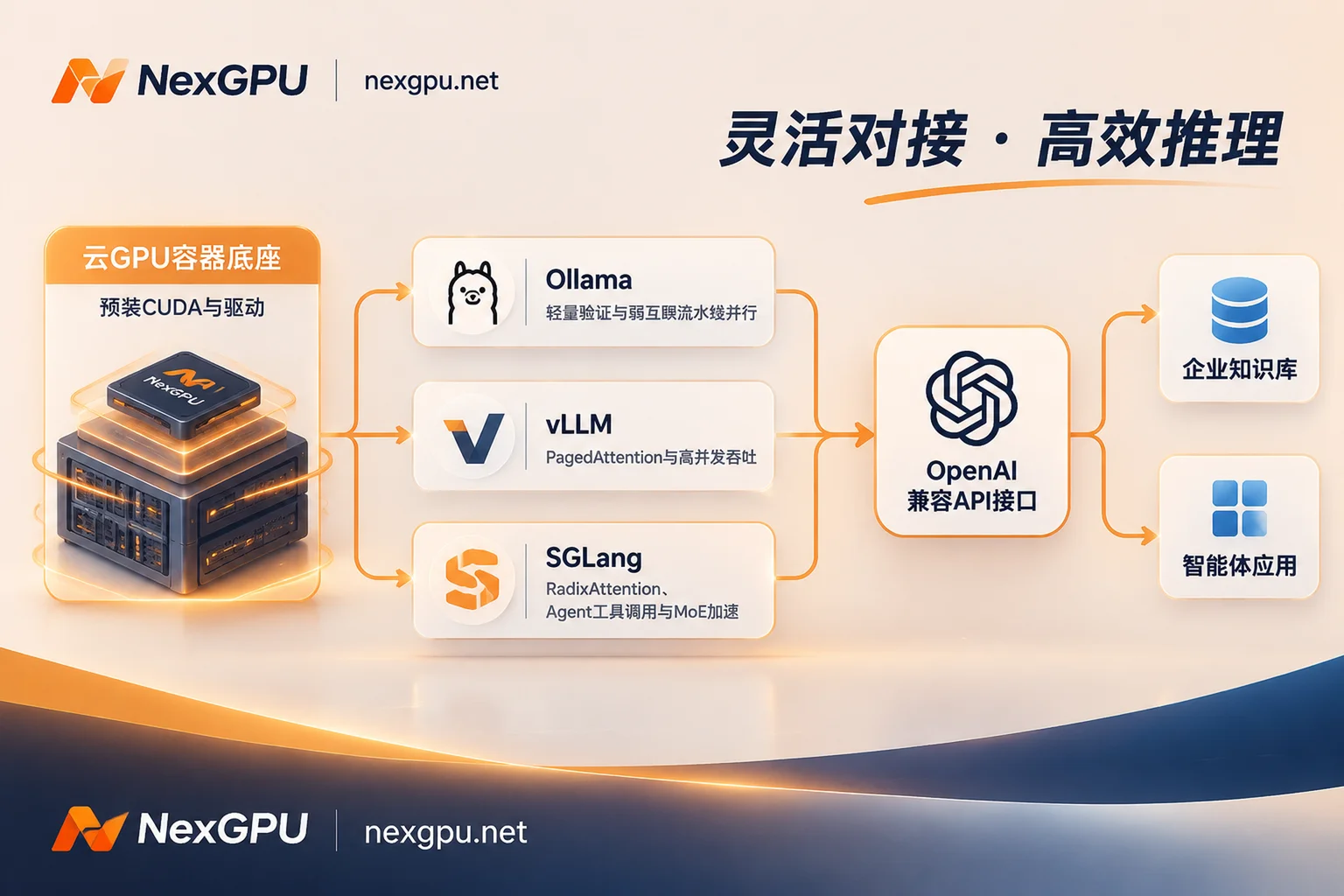
In the NexGPU image template library, the "Large Model Inference" category has pre-installed mainstream frameworks (drivers, CUDA, and dependencies are all configured; after launch, they provide an OpenAI-compatible interface by default). You can directly match them according to the following business characteristics:
Ollama: Personal verification, internal tools, and fallback for weakly interconnected multi-GPU
- Features: Based on
llama.cpp, it has excellent support for GGUF quantization format, and a single command can launch the model. - Hidden advantage: When running 32B/72B models on multiple consumer-grade GPUs (no NVLink, only PCIe interconnection), Tensor Parallelism (TP) is easily limited by high-frequency cross-card communication overhead; while Ollama defaults to pipeline parallelism (PP) split by layers, which requires very few cross-card communications per token generated, making it very robust in weakly interconnected environments. For related tips, please refer to "Ollama Deployment VRAM Anxiety? How to Rent GPU Servers on Demand for an Extremely Cost-Effective Local Inference Experience" and "How to Choose Between Tensor Parallelism and Pipeline Parallelism: Three-Step Judgment Based on VRAM, Inter-Card Connection, and Concurrency".
- Features: Based on
vLLM: First choice for high-concurrency API services and general production environments
- Features: With the PagedAttention mechanism, it minimizes VRAM fragmentation and has obvious throughput advantages under multi-user concurrent requests.
- Applicable scenarios: Integrating Qwen2.5 / Qwen3 into enterprise knowledge bases (RAG), customer service backends, or code completion plugins. If you are preparing to move from local testing to production delivery, we recommend reading "vLLM Deployment Practical Guide: Migrating from Ollama to High-Concurrency Production Environment, How to Choose GPUs, Configure Images, and Expose OpenAI-Compatible Interfaces".
SGLang: Agent multi-turn tool calling, structured output, and MoE acceleration
- Features: An engine designed specifically for complex large model programs; its RadixAttention supports automatic reuse of KV Cache prefixes across requests.
- Applicable scenarios: When you use Qwen3 to build AI Agents (frequent Function Calling / Tool Call with a large number of identical System Prompt prefixes), require strict JSON structured output, or deploy MoE models like Qwen3-30B-A3B / 235B-A22B and multimodal models like Qwen2.5-VL, SGLang often significantly reduces first token latency.
Bring your own Docker image: Addressing specific version lock-in
- If your business code strictly locks CUDA version, PyTorch version, or a specific branch of
transformers, the official website recommends directly filling in your own Docker image (supports public or private repositories) on the template page, and customizing the startup command and environment variables.
- If your business code strictly locks CUDA version, PyTorch version, or a specific branch of
III. Four-Step Practical Process for Qwen Deployment on NexGPU
Traditional cloud providers often involve cumbersome real-name authentication, lengthy quota application tickets, and troublesome driver installation and port security group configuration when renting GPUs. On NexGPU, the entire process is compressed to minutes (for a complete illustrated guide, see Quick Start documentation):
Step 1: Real-name-free registration and transparent price comparison
Just register an account with email; no real-name authentication or GPU quota application is required. After registration, you can enter the GPU compute market to view real-time prices without pre-binding a payment method. Recharge supports Alipay and USDT (TRC20), and the number of simultaneously running instances is unlimited (only constrained by account balance).
Step 2: Filter GPUs by hard metrics and select images
In the compute list, each row represents a real rentable physical machine; consumer-grade (RTX 3090, 4090, 5090, etc.) and data center-grade (A100, H100, H200, B200, etc.) are listed separately with prices, and each machine separately lists compute unit price and disk unit price.
- You can precisely filter by VRAM size, price, region, reliability, network bandwidth, minimum number of cards.
- If you need to deploy Qwen3-32B full precision or 72B/235B models, choose multi-card full-node rental; the order amount equals
单卡价 × 卡数. - After selecting a machine, directly check the pre-installed vLLM / SGLang / Ollama inference template; if you plan to do LoRA or full fine-tuning based on your own business corpus later, you can also open a training and fine-tuning image pre-installed with LLaMA Factory, Unsloth, or Axolotl at any time (for fine-tuning GPU selection logic, refer to "How to Choose GPUs for Large Model Fine-Tuning: Three-Step Decision Based on VRAM Accounting, Fine-Tuning Methods, and Open-Source Frameworks").
- Note on disk planning: Since the platform does not support disk expansion after instance creation, please reserve sufficient storage space before booting (for example, running a 32B model, it is recommended to reserve more than 100GB of disk to store weight files and caches).
Step 3: Direct instance connection and launching OpenAI-compatible services
After the instance boots, the system provides three default无障碍 connection methods (see Instance Connection documentation):
- Web terminal: Open the root terminal directly in the browser, no local client configuration required.
- SSH direct connection: Each instance comes with a public IP and port, connecting directly without a jump server, and supports pre-setting default SSH public keys.
- Jupyter one-click access: If the selected environment includes Jupyter, click to open it with one click and automatically carry the authentication token.
If you are used to graphical operations, you can also install a visual management panel (aaPanel) with one click in the instance, to intuitively manage model weight files, monitor inference processes, and configure scheduled tasks in the browser (note: installing the panel will consume some disk space).
Step 4: Port mapping to connect with business endpoints like Dify / OpenWebUI
In addition to the default connection port, each instance also reserves an additional set of ports specifically for users' own services (note: adding or removing port mappings is not supported after creation; just use the allocated备用 ports directly).
After you bind the Qwen model service to 0.0.0.0 and the corresponding internal备用 port in the terminal using vLLM or SGLang, external AI Agents orchestration platforms (such as Dify, LangChain, FastGPT) or front-end interfaces (OpenWebUI) can directly call your private Qwen interface through http://<公网IP>:<映射外部端口>/v1, achieving a complete closed loop of large model private deployment.
IV. Cost Calculation and Operational Pitfall Avoidance: How to Spend Every Bit of Compute Budget Wisely?
Qwen deployment must not only "run" but also "be affordable". Many developers have encountered hidden charges on other platforms, but on NexGPU, the billing rules remain extremely simple and transparent (see Billing documentation for details):
- Only three items on the bill: The instance details page lists compute fee, storage fee, and traffic fee separately. There is no minimum consumption, activation fee, port fee, or image license fee, and no mandatory rental duration.
- Per-second metering and price lock: Compute fees are metered per second and billed per hour; billing starts only when the instance enters "Running" state, and stops immediately when stopped or destroyed. The unit price at the time of order is locked until the instance is destroyed, unaffected by subsequent market fluctuations.
- Use "stop and keep disk" to save non-working hours costs:
During the R&D and integration phase, you may only need to call Qwen interfaces during the day to test Agent chains. After work, simply click "Stop" in the console (see Instance Management documentation); compute fees stop immediately, and the system will fully retain your disk and the tens of GB of Qwen weight data already downloaded (during shutdown, only a low storage fee is charged per GB/month as usual). The next day, one-click start again for seamless continuation. - Balance protection mechanism: Prepaid mode is adopted; when the balance is low, a warning email is sent; if the balance is exhausted, the system will first automatically stop (without destroying data), and only if the negative balance exceeds a set duration will it be automatically destroyed. Recharging in the meantime can restore business in place.
- Data security and destruction reminder: Each instance is an exclusive container; the platform never reads or backs up user disk contents. Therefore, before you no longer need a machine and enter the instance ID to confirm "Destroy", please be sure to export your fine-tuned weights or business logs yourself—the destroy operation will immediately release the disk to stop storage billing, and data cannot be recovered.
V. From Single-Machine Verification to Multi-Card Clusters and Enterprise-Grade Delivery
When your Qwen application passes MVP verification, concurrency begins to climb, or you need to deploy giant models like Qwen3-235B-A22B or use DeepSpeed, FSDP, Megatron for distributed training, the compute architecture also needs to be upgraded simultaneously.
- Self-service multi-card high-VRAM nodes: In the GPU market, directly filter by minimum number of cards for 4-card or 8-card A100, H100, H200 nodes and place orders. If throughput does not meet expectations during multi-card parallel operation, you can refer to our technical column "Why Doesn't Multi-Card Inference Throughput Double? Three-Step Troubleshooting by Parallelism, Concurrency, and Interconnect" and "How to Troubleshoot Uneven Expert Load in MoE Models: First Distinguish Training or Inference, Then Locate Layer by Layer".
- Enterprise exclusive solutions: For R&D teams and compute buyers with strict requirements for data compliance and network latency, NexGPU provides enterprise-grade solutions supporting RDMA high-speed interconnect, data isolation, private networks, and dedicated compute clusters.
- Flexible business support: If you need reserved instances, monthly/yearly discounts, dedicated compute pools, or need to sign formal contracts, make corporate payments and invoices, or go through PO procurement processes, you can quickly connect via the Contact Sales page or official bilingual customer service (supports direct communication via Telegram, contracts and invoicing via email).
Whether you are an independent creator renting a GPU for the first time to run a 7B multimodal model, or an architect planning a 32B/235B private foundation for an enterprise, you can now go to the NexGPU Model Guide to check VRAM configurations, select pre-installed images, and launch your high-performance Qwen inference service in minutes.